Why Native Beats Crop
Quick answer: Native 9:16 beats a wide clip you crop later. Open the on-site native vertical, set vertical once, keep faces and hands inside the safe zone, and ship. Still-first vertical starts from Image to Video.
You searched veo 3.1 9:16 because Shorts and Reels punish edge-cropped heroes—not because you need another five-part DP formula. This page is a vertical-habits checklist: why native beats crop, where to keep faces and UI chrome, how to word faces and hands for a tall frame, and when a crop is still acceptable. It is not a paste-prompt cascade.
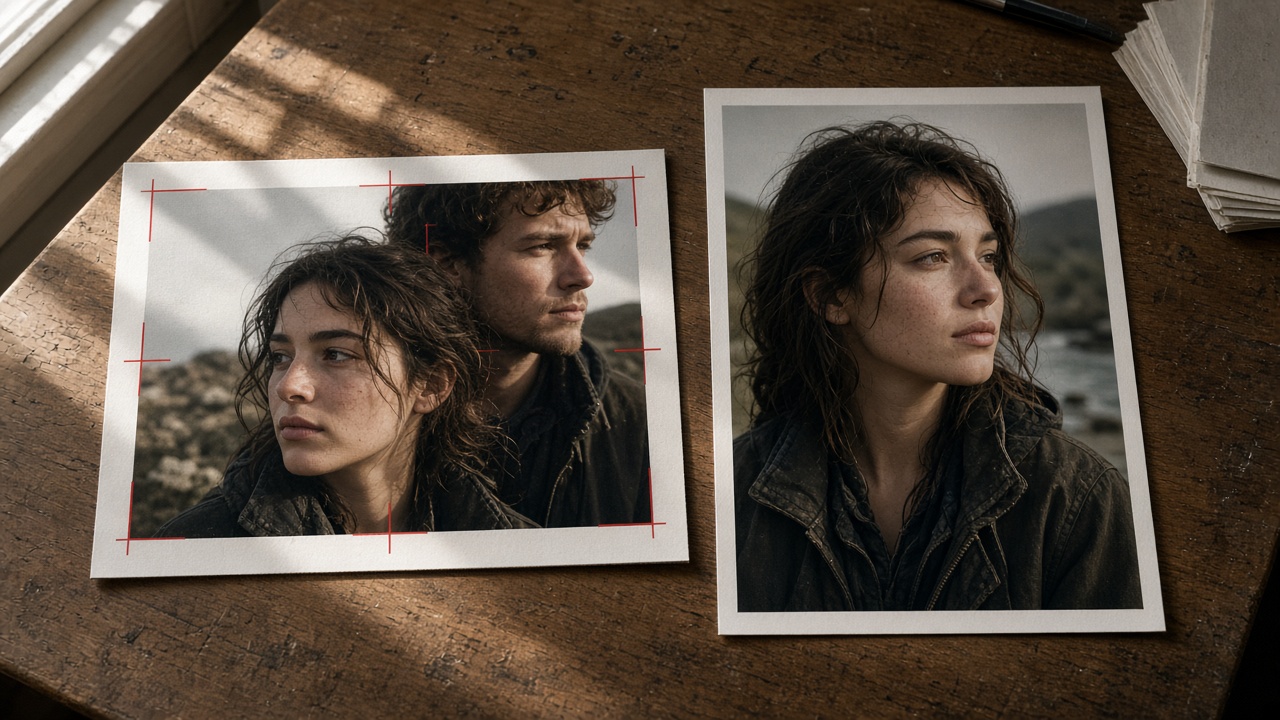
A 16:9 master squeezed into 9:16 throws away the sides you already paid for. Heads sit under the platform chrome; product labels vanish; the “cinematic” wide shot becomes a tall empty corridor with a tiny subject.
- Compose for tall first — subject in the middle third, breathing room above the head, feet or product base still readable.
- One hero — a wide two-shot rarely survives vertical. Pick the person or object that must read at thumbnail size.
- Motion along the tall axis — a slow rise, a hand entering from below, a product lift. Side-to-side pans waste the frame you just locked.
- Generate native — set Veo 3.1 9:16 in the generator before the take, not after export.
If the brief already exists as a landscape still you refuse to reshoot, jump to the last section—crop can be a backup, not the default.
Safe-Zone Habits
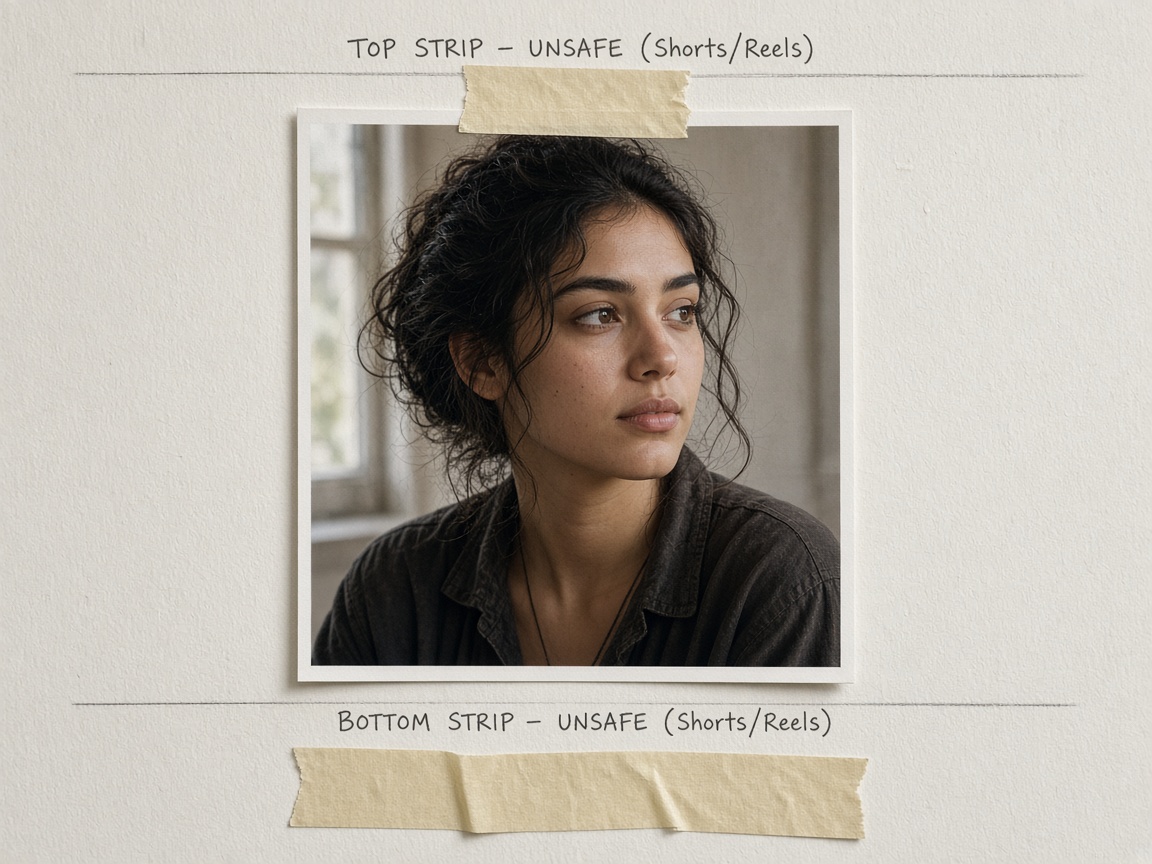
Platform chrome eats the top and bottom. Treat the outer ~10–12% of the tall frame as unsafe for faces, logos, and critical type.
- Keep faces in the middle band — forehead clear of the top status/UI strip; chin not kissing the caption zone.
- Leave a quiet bottom third — captions, stickers, and CTA bars will land there later. Do not park the product label in that strip.
- Thumbnails first — if the hero is unreadable at phone-grid size, the vertical habit failed before generate.
- Still path — when you start from a photo, crop the still to 9:16 before upload so Image to Video inherits the safe zone instead of inventing a pan into the chrome.
Quick self-check before generate
- Aspect = 9:16 (native), not “I’ll crop in CapCut.”
- Face/product center mass is inside the middle band.
- No critical detail in the top or bottom unsafe strips.
- One primary move only for the first take.
Prompt Habits for Faces/Hands
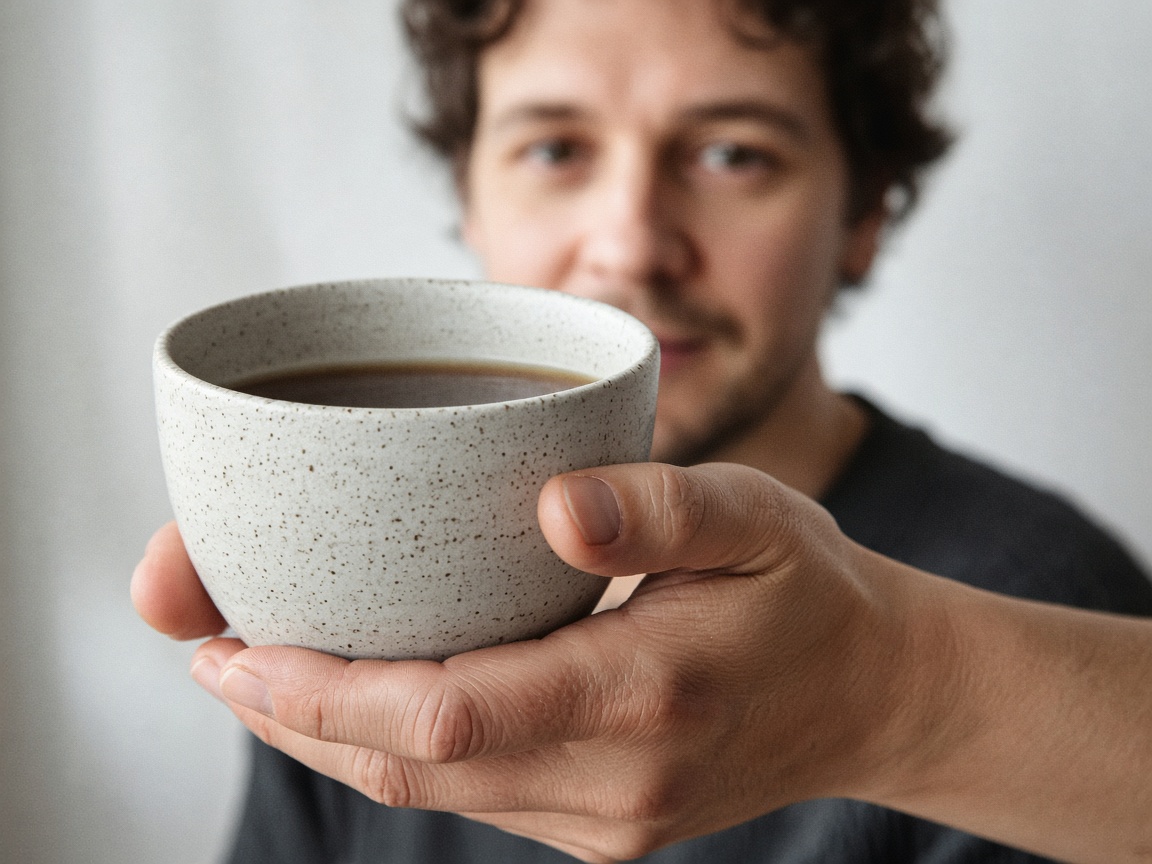
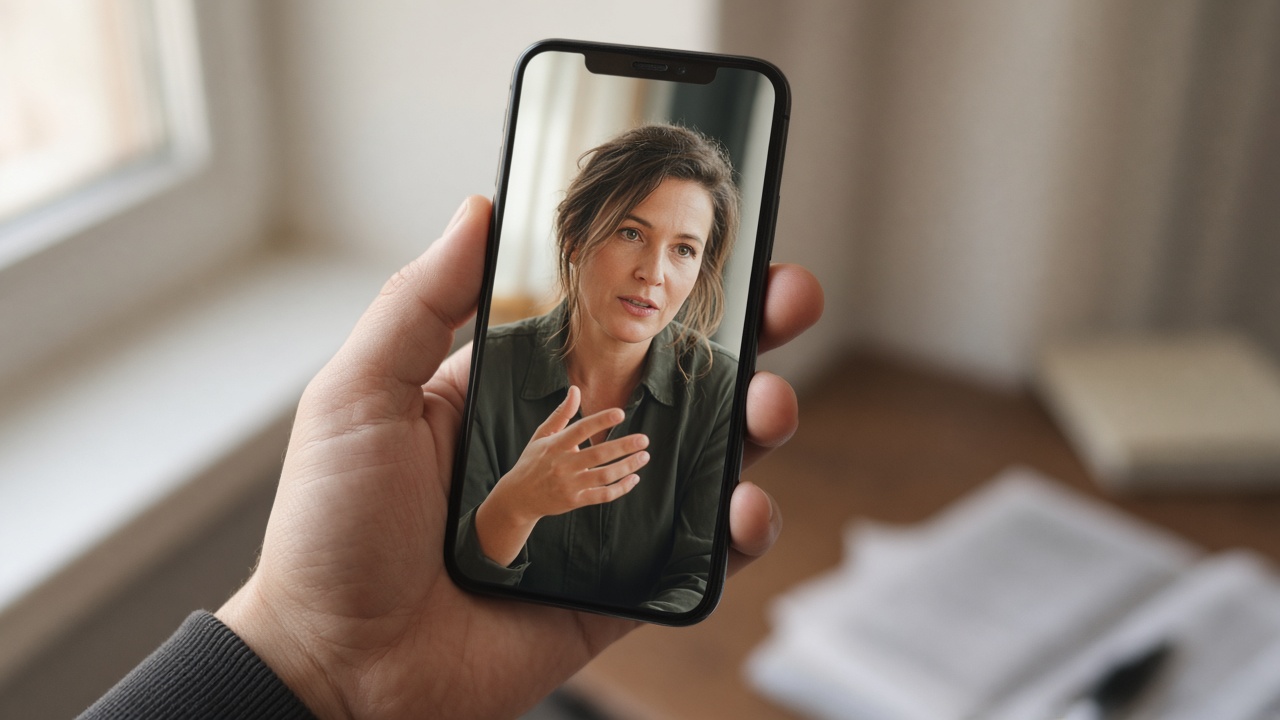
Vertical frames amplify face and hand errors. Keep the wording short and spatial—name where the face sits and what one hand does. Do not paste a multi-block DP recipe.
- Face placement — “face centered in the middle third, eyes above midline” beats “cinematic portrait.”
- One hand action — “right hand lifts the cup toward camera” beats stacking wave + point + product spin.
- Keep identity short — hair color, wardrobe, age band in one line if needed; do not re-art-direct the whole set in a tall short.
- Camera = one production move — locked-off, slow push-in, or gentle rise. Tall + multi-axis camera is where limbs smear.
After one take, if the face drifts or fingers melt, change either the placement line or the hand line—not both—then run again from the same Shorts vertical door.
When Crop Is Still OK
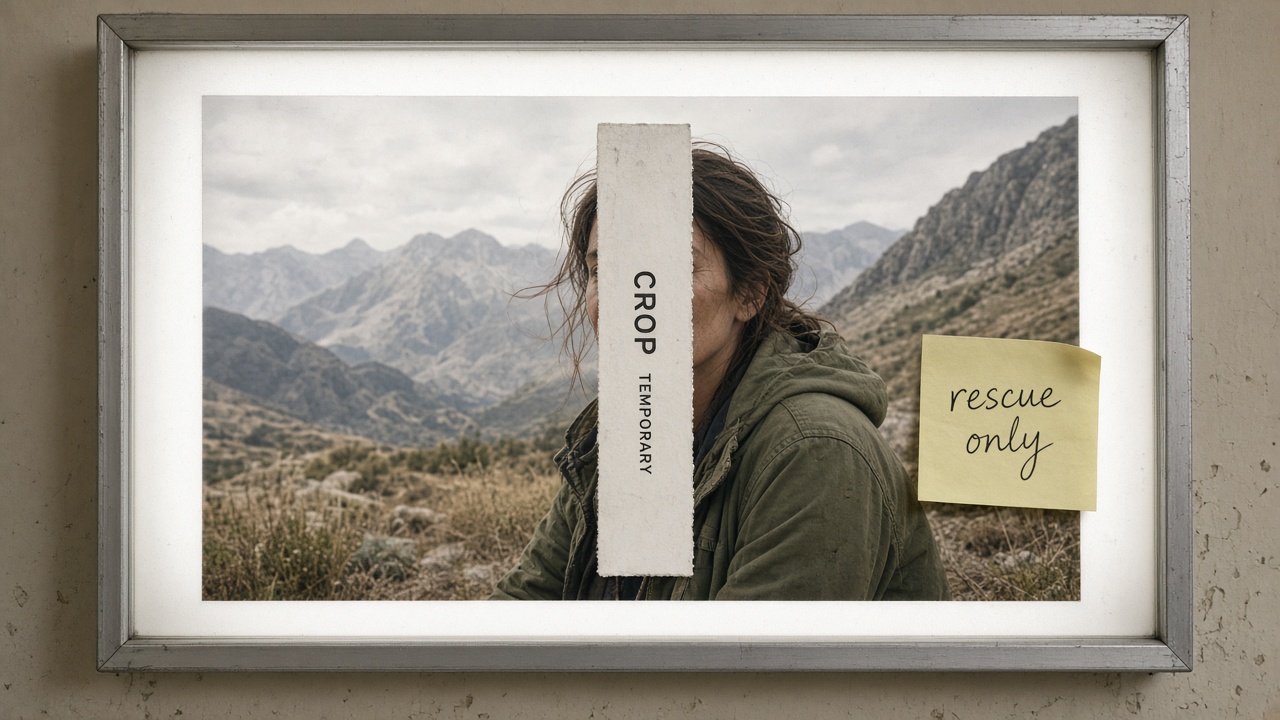
Native is the default. Crop is a rescue tool when the asset already exists and the brief will not wait for a reshoot.
- OK to crop — approved landscape master, hero already near center, you only need a temporary Shorts cut for the same day.
- Still risky — hero stuck on the far left/right; faces already under burned-in lower-thirds; product type sitting in the side gutters you are about to delete.
- Better path — re-export or regenerate native 9:16 when the crop would amputate eyes, logo, or the demo gesture.
Ship check — tick the four self-check boxes above, then generate. Any open box means fix that habit first; crop in this section stays a rescue, not the plan.
Related
- Lock the First Frame in Veo 3.1 Image-to-Video — sister I2V notebook (still lock, not vertical habits).