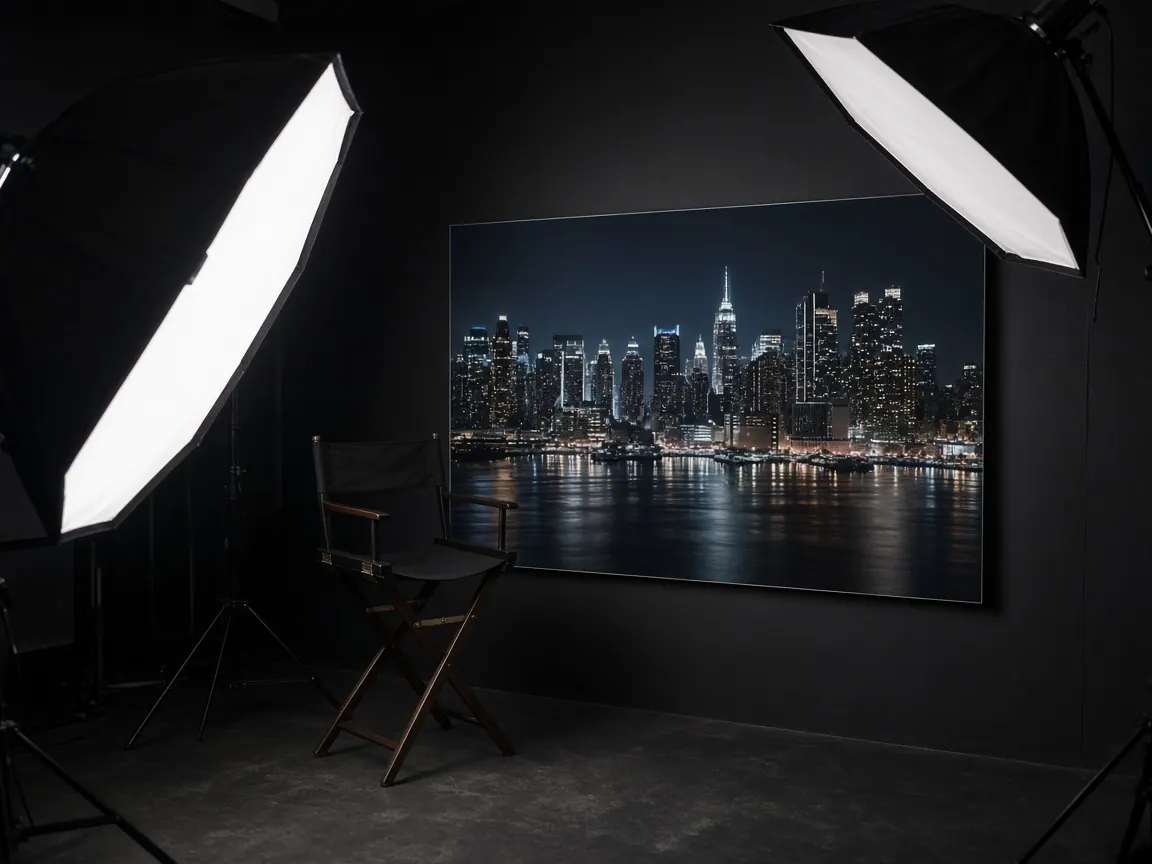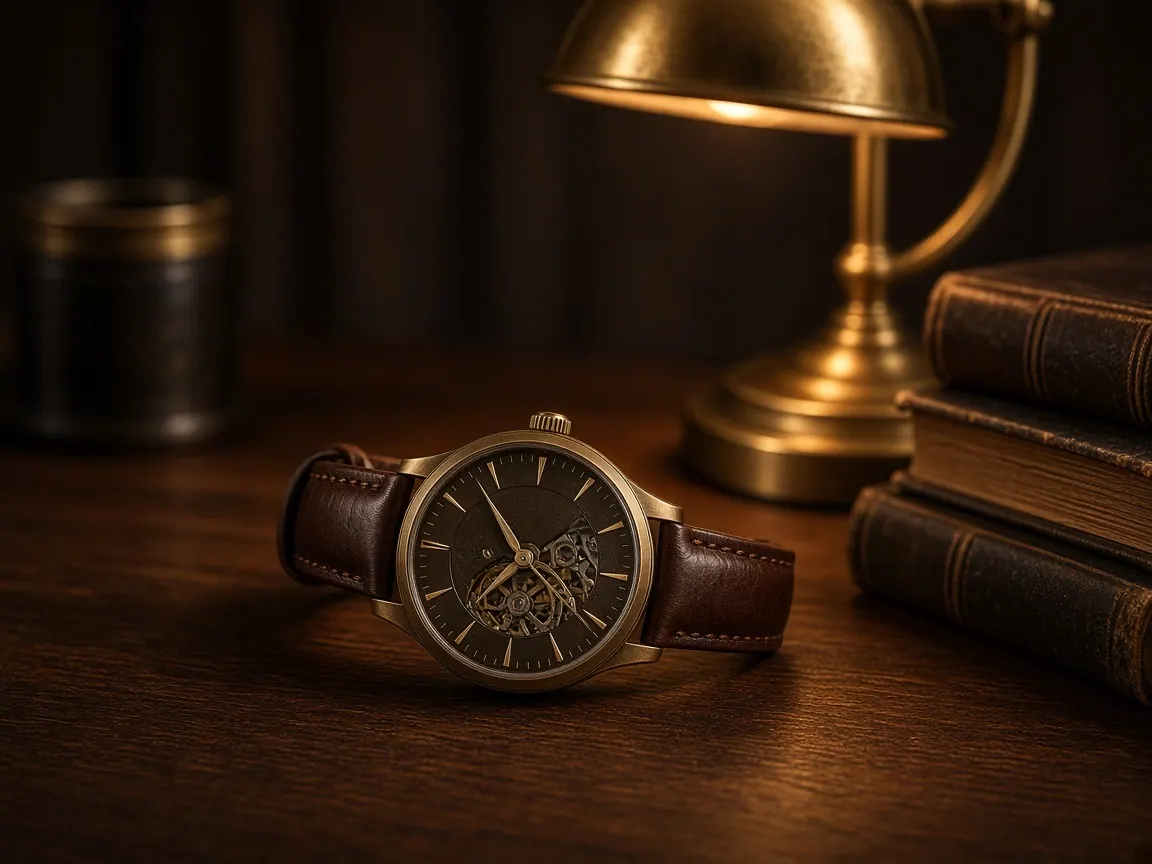
Lighting and texture
Specify subject, light, material, and framing, then generate a still you can review. GPT Image 2.5 renders light and surface detail more naturally than GPT Image 2.
Generate a stillPrompt-generated images include the Veo 3 watermark when removal is not available on your account.
View paid options for watermark control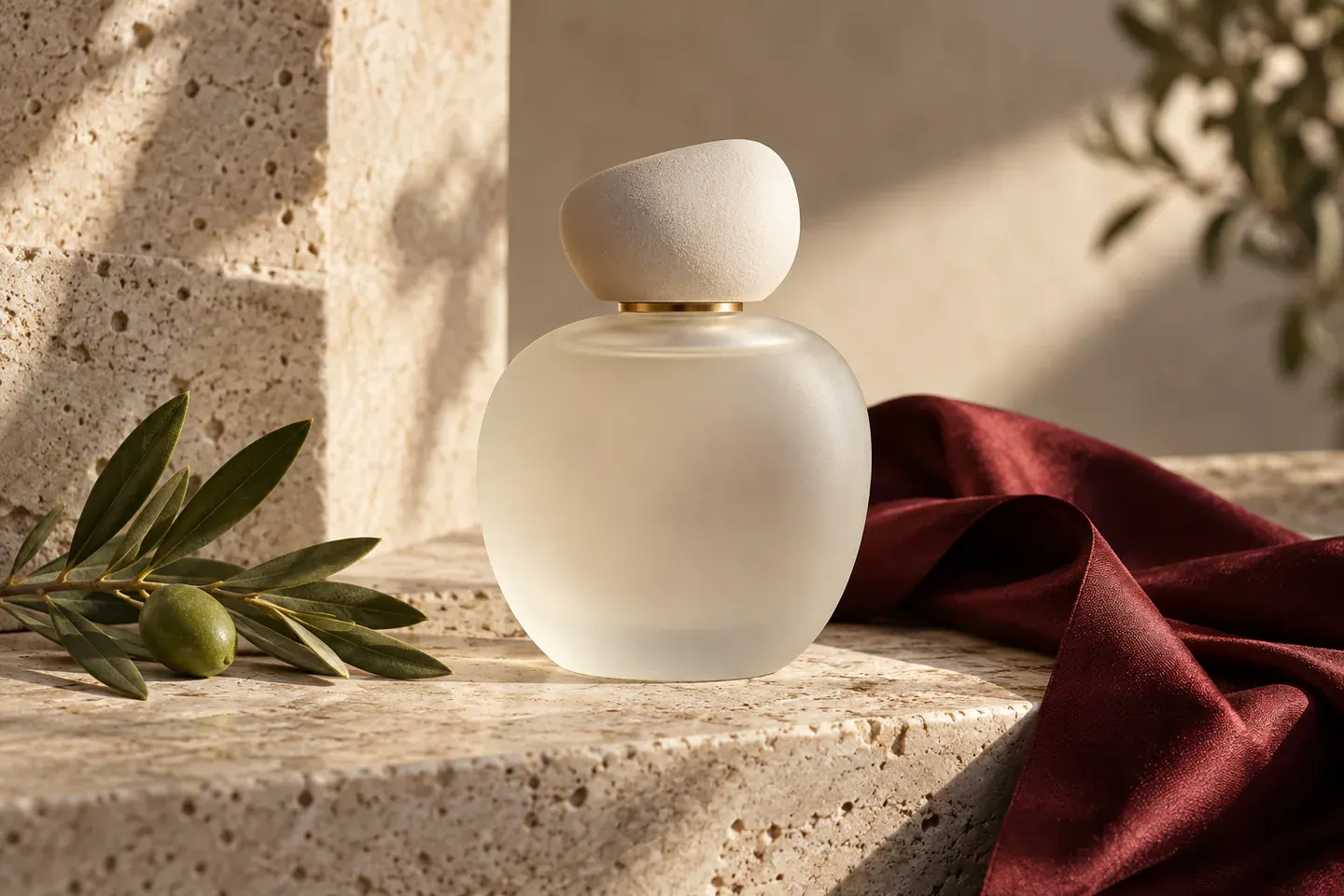
Text-to-image for a new scene. Image-to-image when a face, product, or place has to stay recognizable.
GPT Image 2.5 holds lighting, short lettering, and local edits more steadily than GPT Image 2. Write one still in the generator above, or upload a photo and change only the part that needs to move.
Open GPT Image 2.5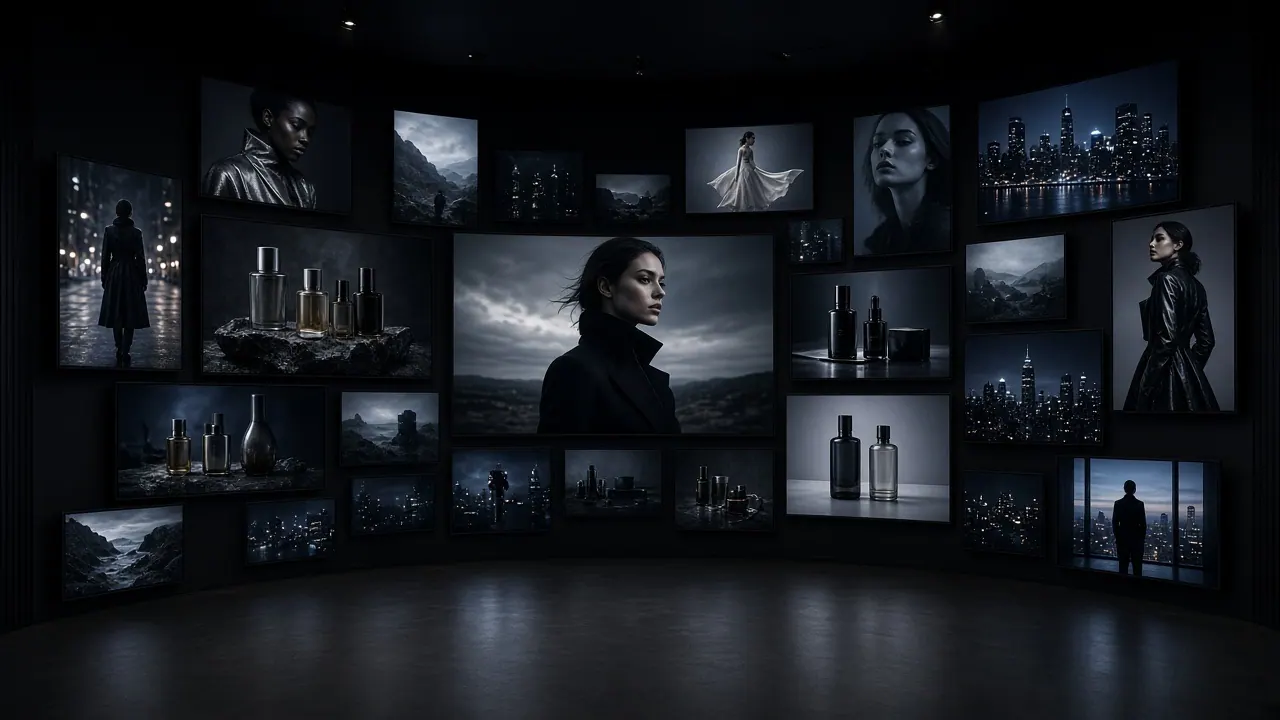
It generates from text and edits from images. One prompt can hold lighting, layout, short lettering, and the parts of a photo that must stay fixed.
Specify subject, light, material, and framing, then generate a still you can review. GPT Image 2.5 renders light and surface detail more naturally than GPT Image 2.
Generate a still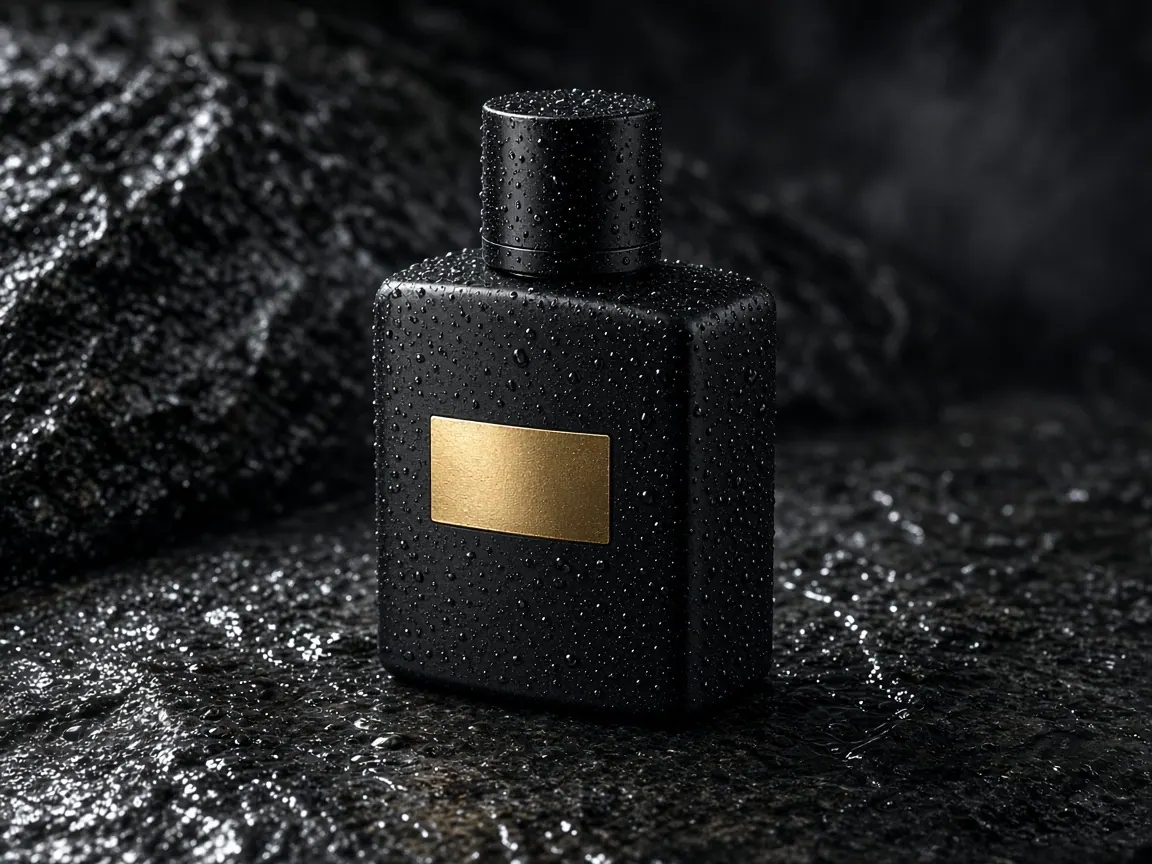
Change a background, material, color, or short line of type without rebuilding the rest of the frame. Use it for packaging variants, UI mocks, and approved subjects.
Edit from a reference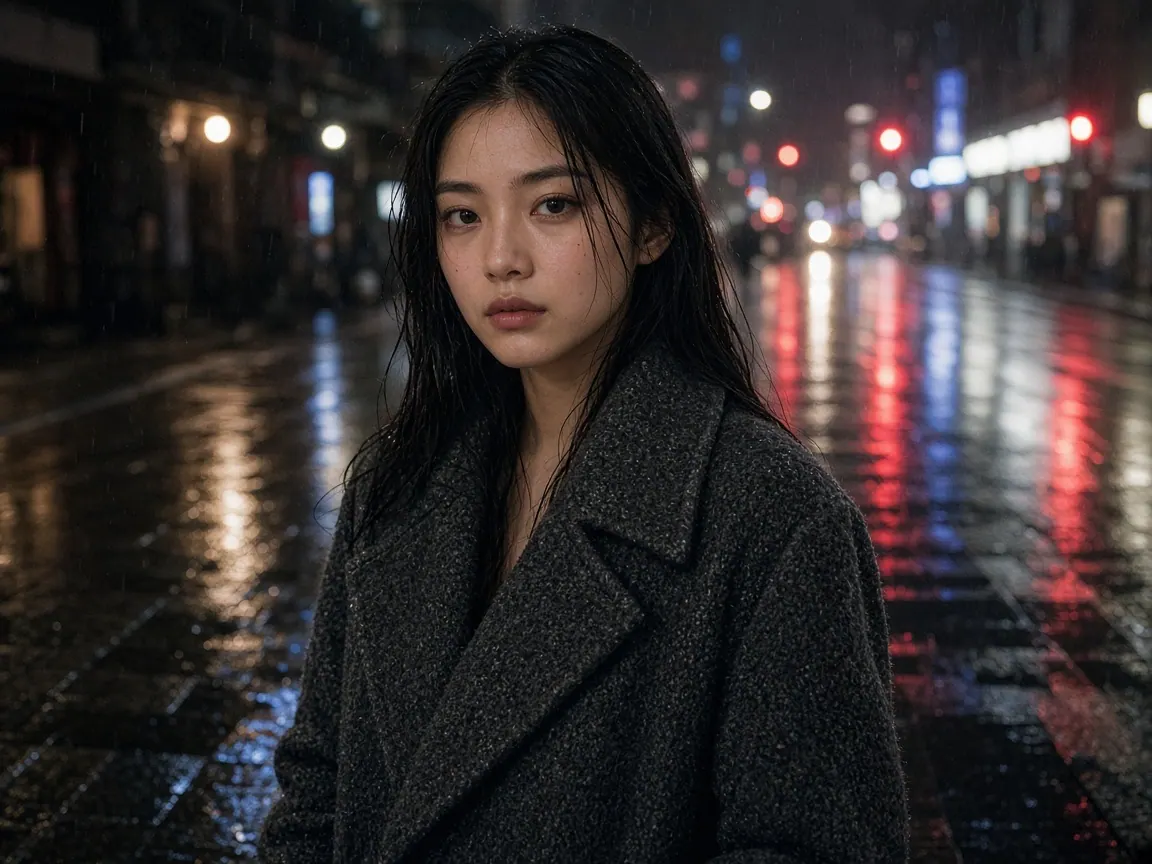
Upload a person, product, or place, then change wardrobe, set, or lighting. The source identity stays readable while the scene around it changes.
Start from a photo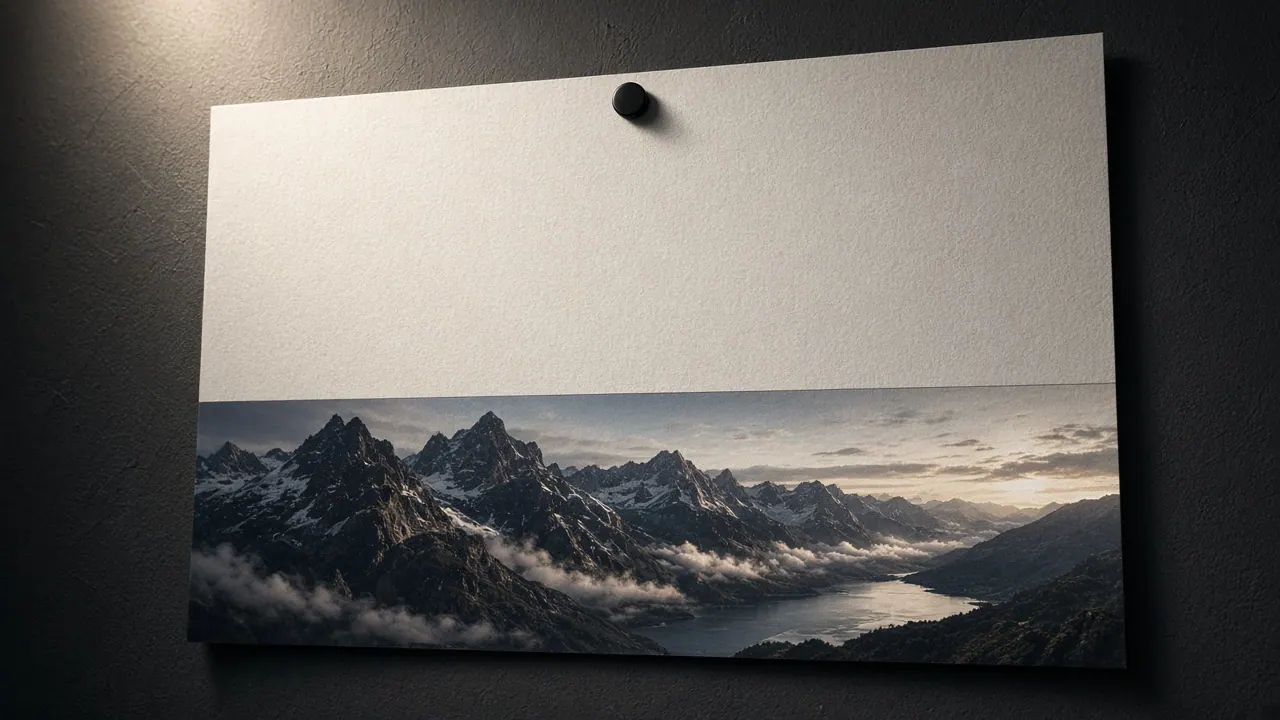
One prompt can carry several subjects, a layout, short headline copy, and a transparent background. Put the words in quotes and name their placement.
Write the brief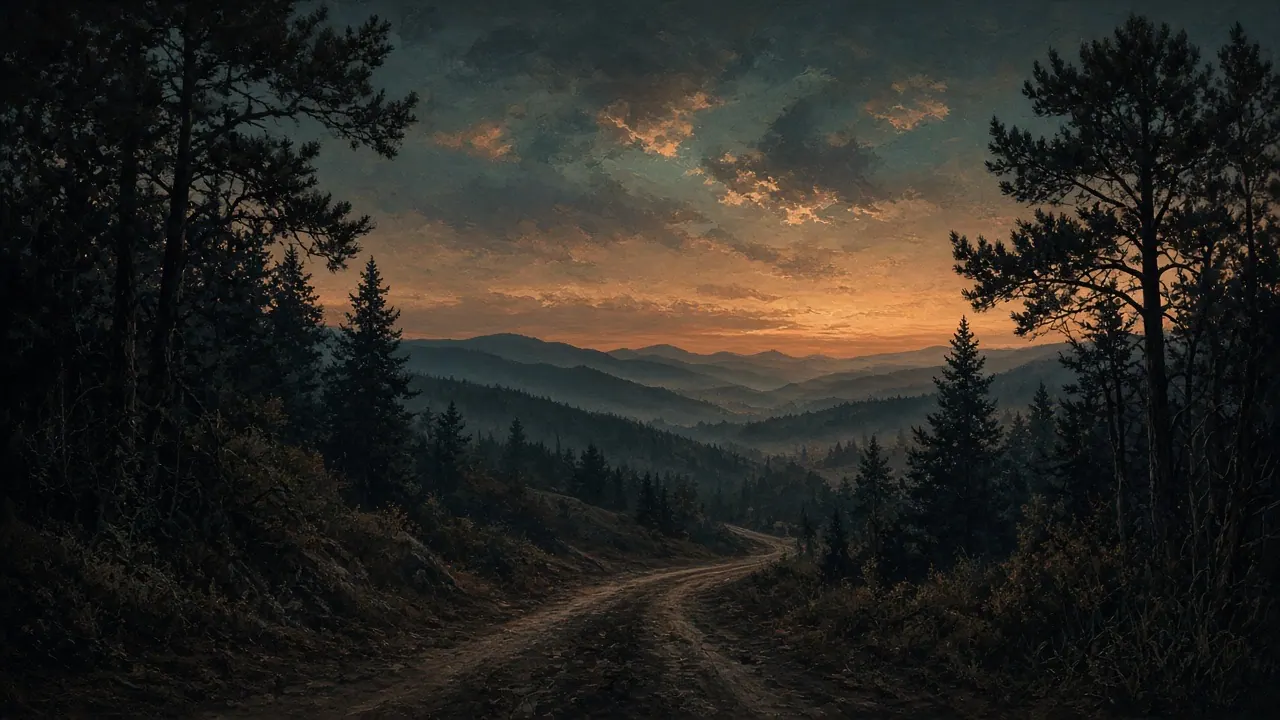
The generator above is the working surface. A useful first pass is one subject, one format, and one thing you will inspect in the result.
Keep this model selected for a new still. Open Image to Image and choose GPT Image 2.5 when you already have a photo to edit.
Name the subject, setting, any lettering, aspect ratio, and the 1K, 2K, or 4K output you need. Leave Auto on if the frame is still undecided.
Review lighting, identity, and text at the intended size. Change one instruction on the next pass, or continue from My Creations.
| Capability | GPT Image 2.5 | Nano Banana 2 | Seedream 5.0 |
|---|---|---|---|
| In-image lettering | Posters, labels, ads, and short UI type | Legible text, localization, infographics | Multilingual layout and dense graphics |
| Text-to-image | Yes | Yes | Yes |
| Image editing | Local changes that leave the rest stable | Multi-turn conversational edits | Region-guided edits and multi-image fusion |
| Reference fidelity | Faces, products, and places stay more consistent | Up to 14 reference images | Multi-image fusion for campaign sets |
| Typical production use | Ads, packaging, product stills, UI mocks | High-volume stills and grounded visuals | Design production with spatial edits |
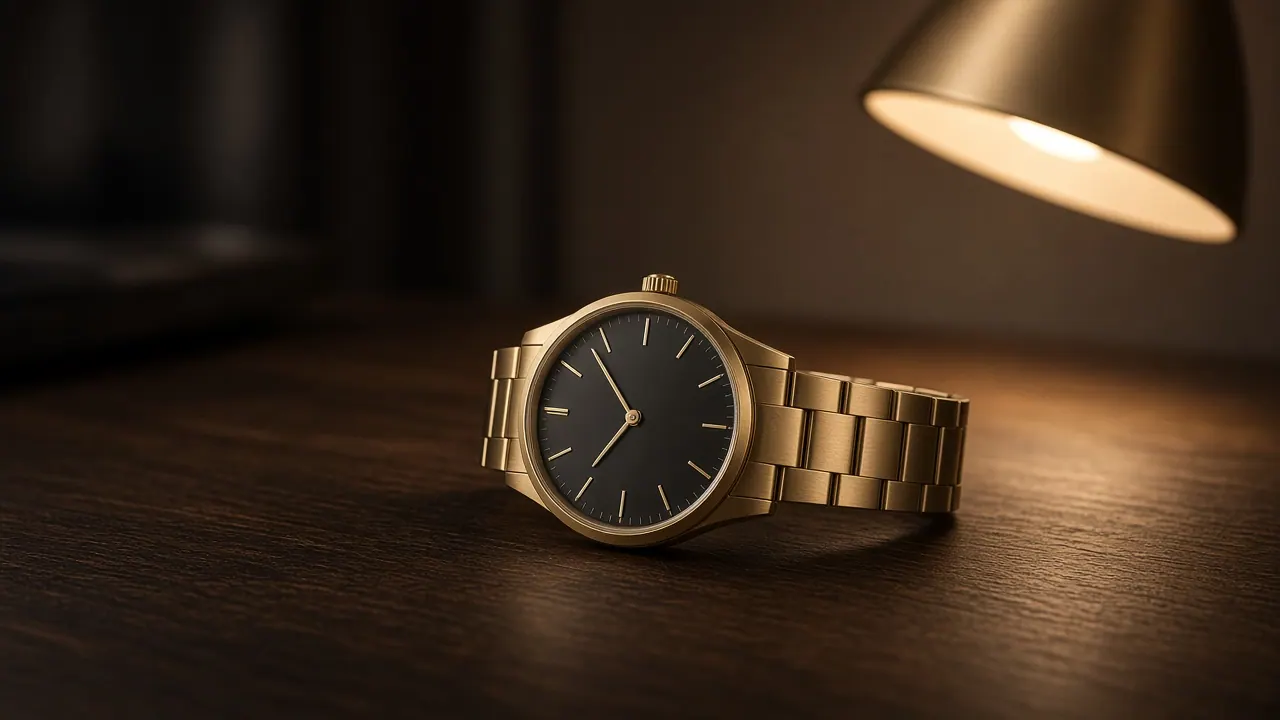
The previous GPT Image generation, still available for prompt-led stills and reference edits in Veo 3.
Open GPT Image 2 →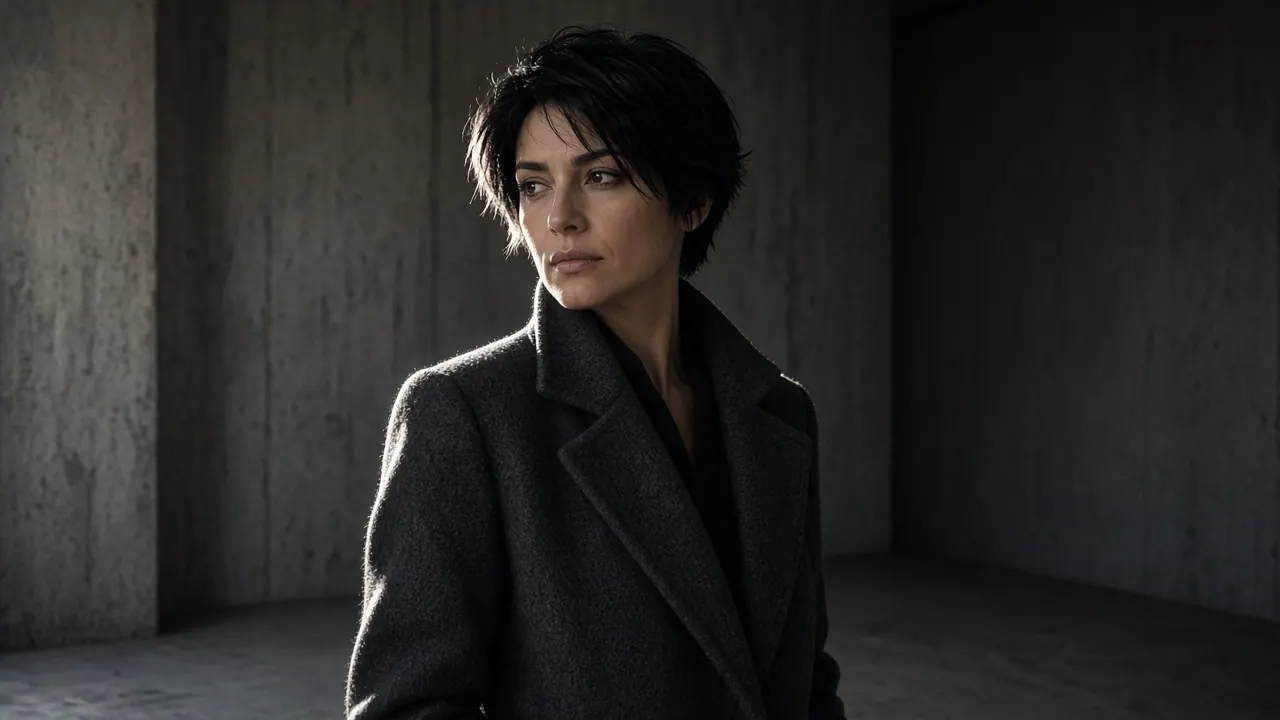
Upload a source still, keep the identity or product, and describe only the change you want GPT Image 2.5 to make.
Open image editing →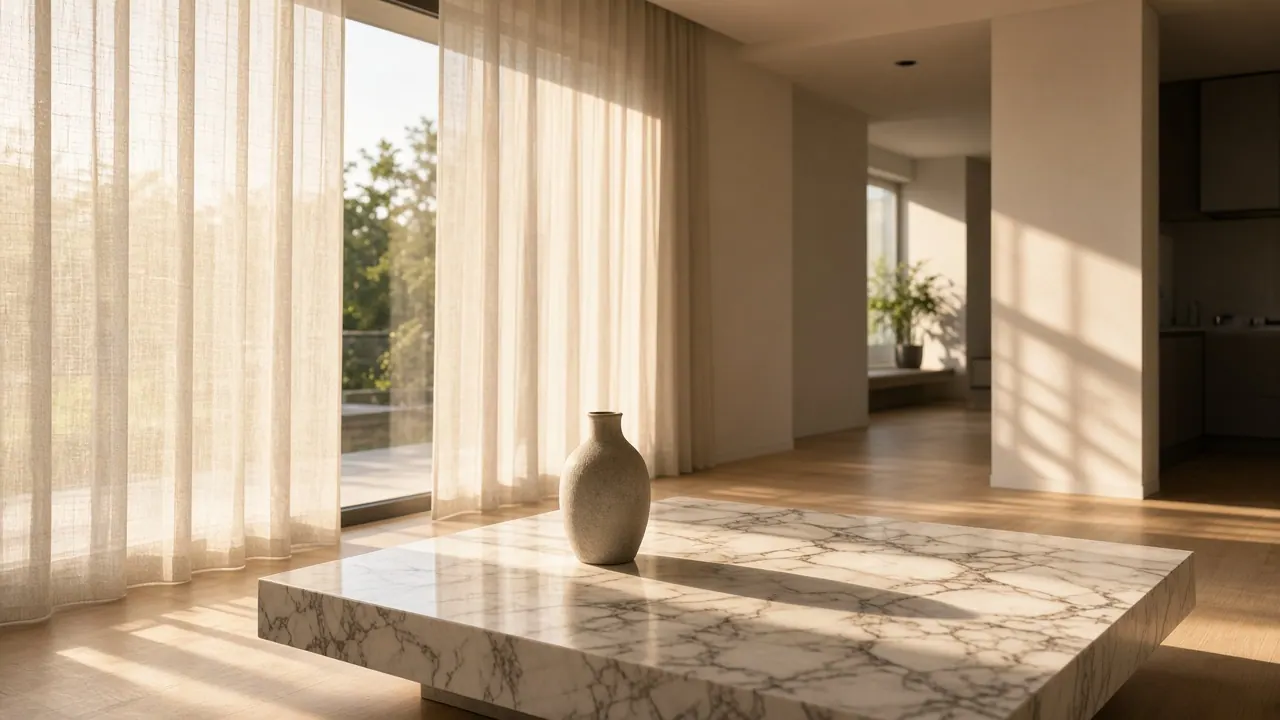
Write a visual brief and generate a new still when you do not yet have a source photograph.
Open the tool →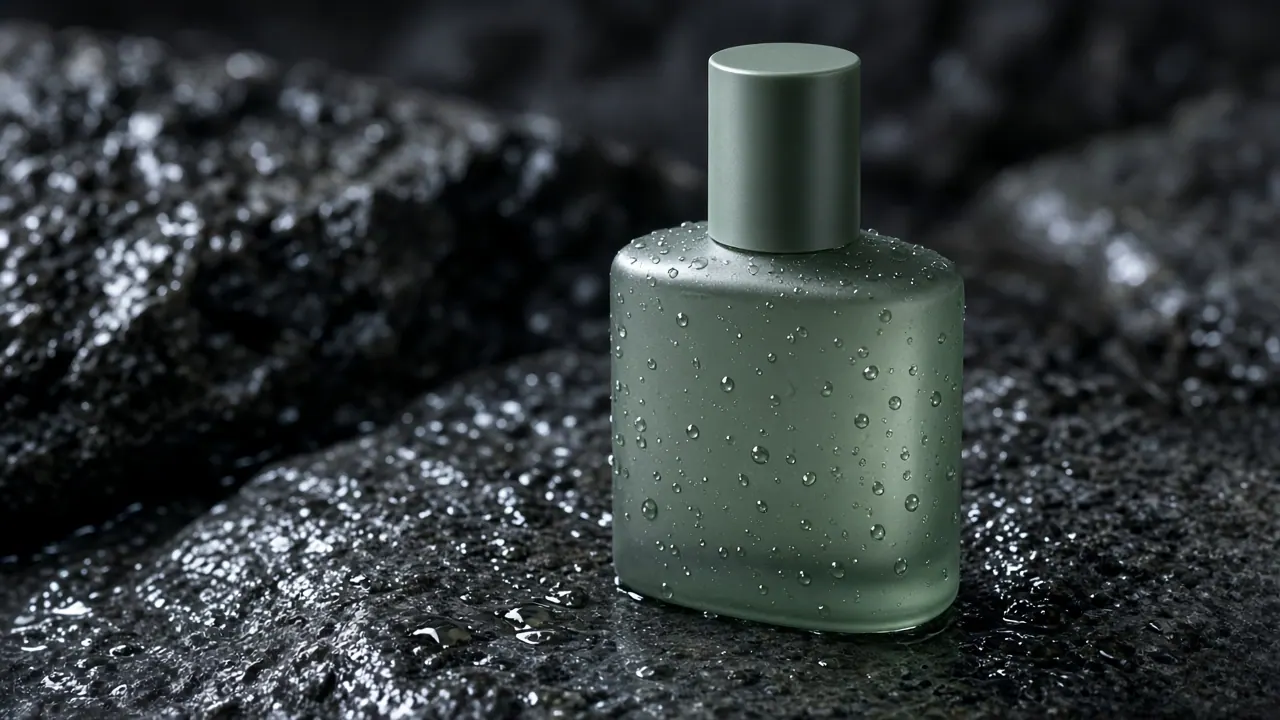
Start from an approved photo and restyle, relight, or re-stage it without rebuilding the subject.
Open the tool →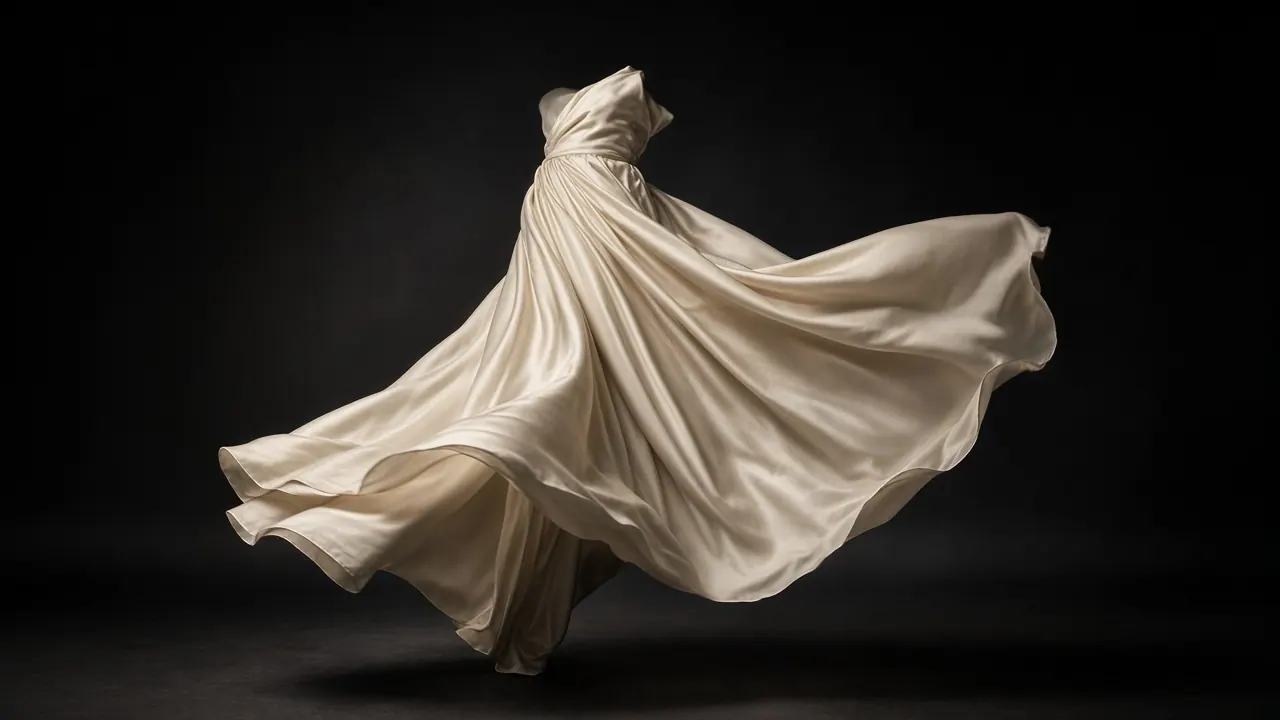
Take a finished still into a short clip when the next step is motion rather than another image pass.
Open the tool →How the model generates, edits, and fits a Veo 3 still.
GPT Image 2.5 is an image generation and editing model. It accepts a text prompt, and it can also take source images, then return a still. Compared with GPT Image 2, it is built for sharper detail, more natural lighting and texture, stronger subject preservation, and more reliable local edits. In Veo 3 you run it from the generator on this page, with aspect ratio and 1K, 2K, or 4K controls, then collect the file in My Creations.
Use it when the still has to carry a specific subject and a specific layout at the same time. That includes campaign graphics, product scenes, packaging concepts, posters with short lettering, UI mocks, and portrait or product variants that start from a reference. It is also the better GPT Image choice when you expect several refinement passes, because later instructions are more likely to keep earlier decisions in place. It is not a video model; move a finished still to Image to Video if you need motion.
Yes. Open Image to Image, select GPT Image 2.5, upload the source still, and write what must remain plus what should change. Typical edits are background replacement, material or color shifts, wardrobe changes, and short in-image copy. After each result, check the parts you asked to preserve before you stack another instruction. If the subject drifts, shorten the prompt and name those locked details first.
Yes, short lettering is part of what the model is built to handle: posters, labels, ads, and simple UI type. Put the exact words in quotes, state the placement and hierarchy, and inspect every character at the target size. Keep legal copy, prices, dates, and brand-critical typography out of the generation when those strings must be perfect; add them in a design tool after the visual is approved.
Sign in, keep GPT Image 2.5 selected, write one clear still, choose the ratio and resolution, and generate. The button shows the credit estimate for the current settings before you submit. Completed files appear in the preview and in My Creations, so you can download later without repeating the prompt. Paid plans control watermark removal; the generator states that limit when it applies.
This page generates from a prompt. You can choose Auto or a fixed aspect ratio, then 1K, 2K, or 4K. Image to Image adds reference uploads, up to 16 files, when the source already exists. Transparent, opaque, or automatic backgrounds are supported by the model; for high-resolution cutouts, describe an isolated subject with no scenery or shadow. Square 4K is not offered in this generator because that pairing is disabled in the current controls.
Both models generate and edit stills from text and images. GPT Image 2.5 is the newer generation: faster than GPT Image 2, with tighter local edits, more stable reference subjects, and stronger handling of layered briefs that mix layout, lettering, and transparent backgrounds. Keep GPT Image 2 when you want to compare a previous result or stay on a brief that already works there. For new campaign and product work in Veo 3, start with GPT Image 2.5.
The first result appears in the preview on the right. Every completed task is also stored in My Creations, which is the safer place to compare versions, download, and pick a still for Image to Video. Keep a short note with the prompt, ratio, and the one variable you changed so a later pass is a correction, not a new idea. If a task needs support, record its status from My Creations before you write in.
Write the still, choose the format, and generate in Veo 3. The same account holds your credits, watermark setting, and finished files in My Creations, so the next edit or video pass starts from the image you already approved.
Generate with GPT Image 2.5