
Step 1: Choose a Model
Open the video generator and select a model. Choose text-to-video or image-to-video from the available input modes.
Create a short Veo 3 AI video from a prompt or reference image. Direct the subject, camera, motion, lighting, and audio for the scene you want to make.
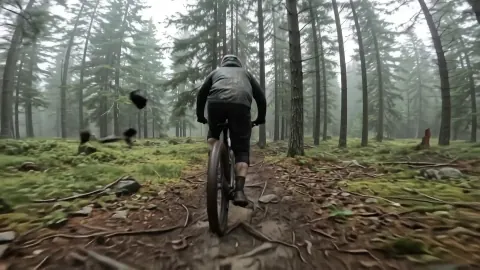
Downhill riders racing through a rain-soaked alpine forest
Open the video generator and select a model. Choose text-to-video or image-to-video from the available input modes.
Describe the subject, action, and setting, or upload an image. Choose the aspect ratio, duration, and resolution available for your model.
Click Generate and wait for your video. Preview the result, adjust your prompt if needed, and save the clip.
Explore examples available in Veo 3 and view the prompts, models, and settings behind each result. Select an example to see how it was made or create a similar result.
Fashion editorial · Text to video
Winter scene · Image to video
Fashion campaign · Image to video
Identity study · Reference to video
Recipe detail · Text to video
Food macro · Image to video
Create videos from text or images with Veo 3, with controls for model selection, output format, scene direction, and audio.
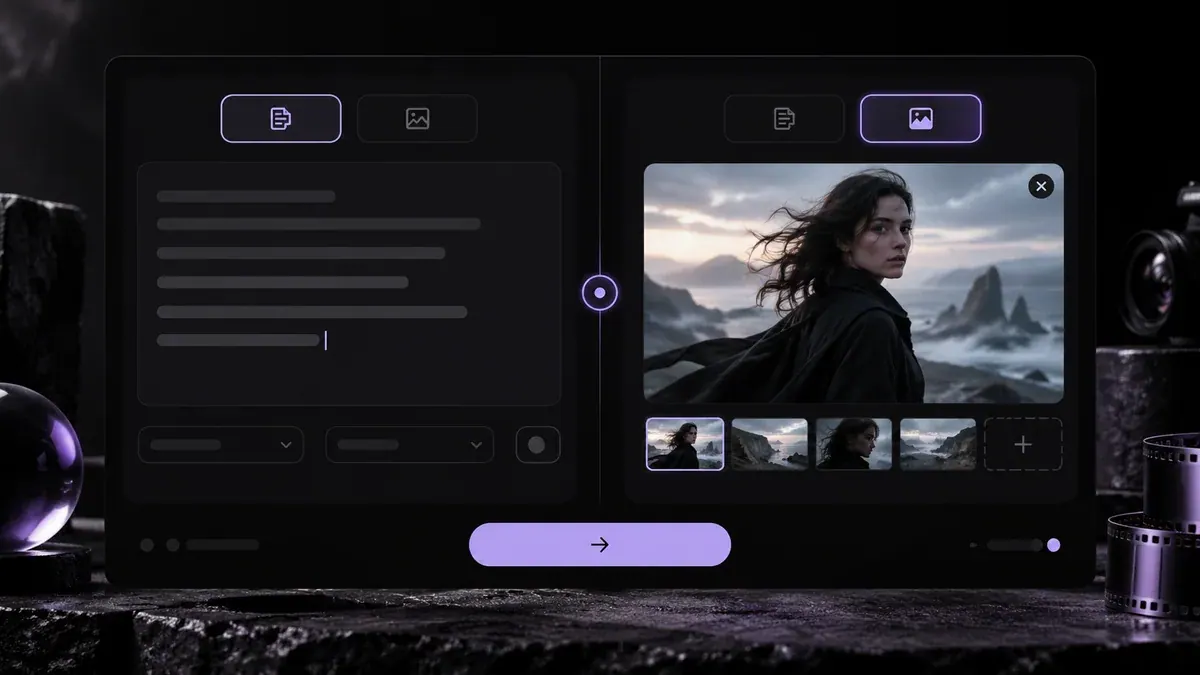
Choose Text or Image
Start with a text prompt for a new scene, or upload an image to guide the subject, composition, or visual style.
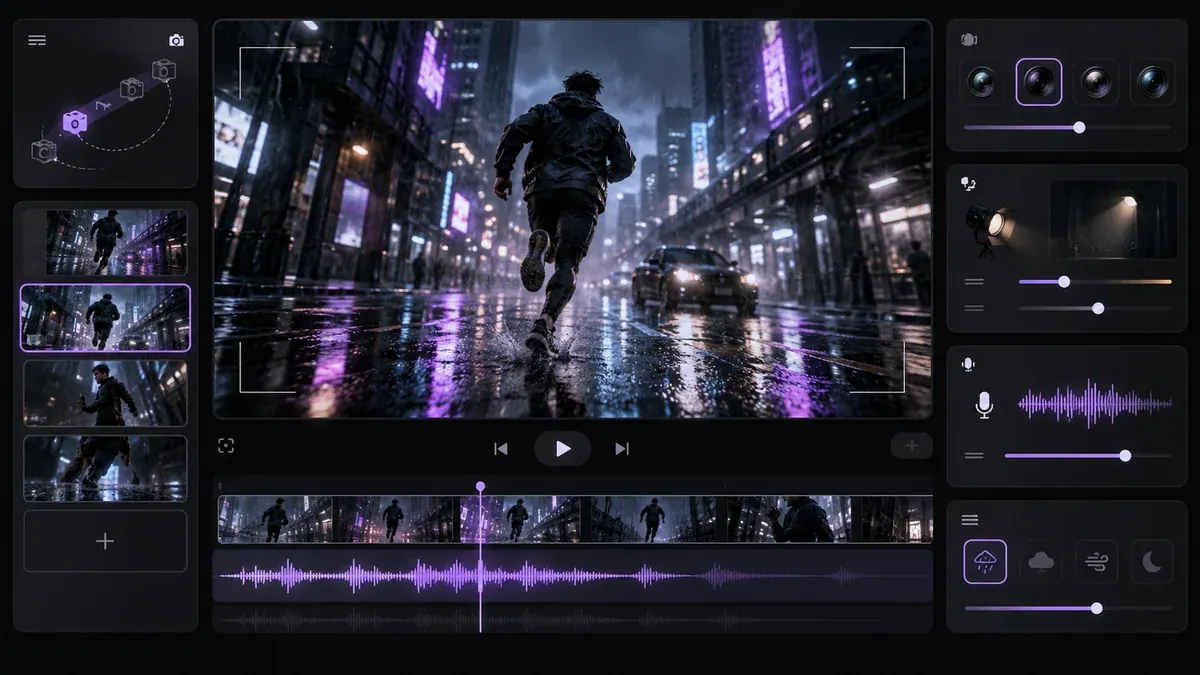
Direct the Shot
Describe the subject, action, setting, camera movement, lighting, pacing, and sound. Then choose the settings available for your Veo 3 model.
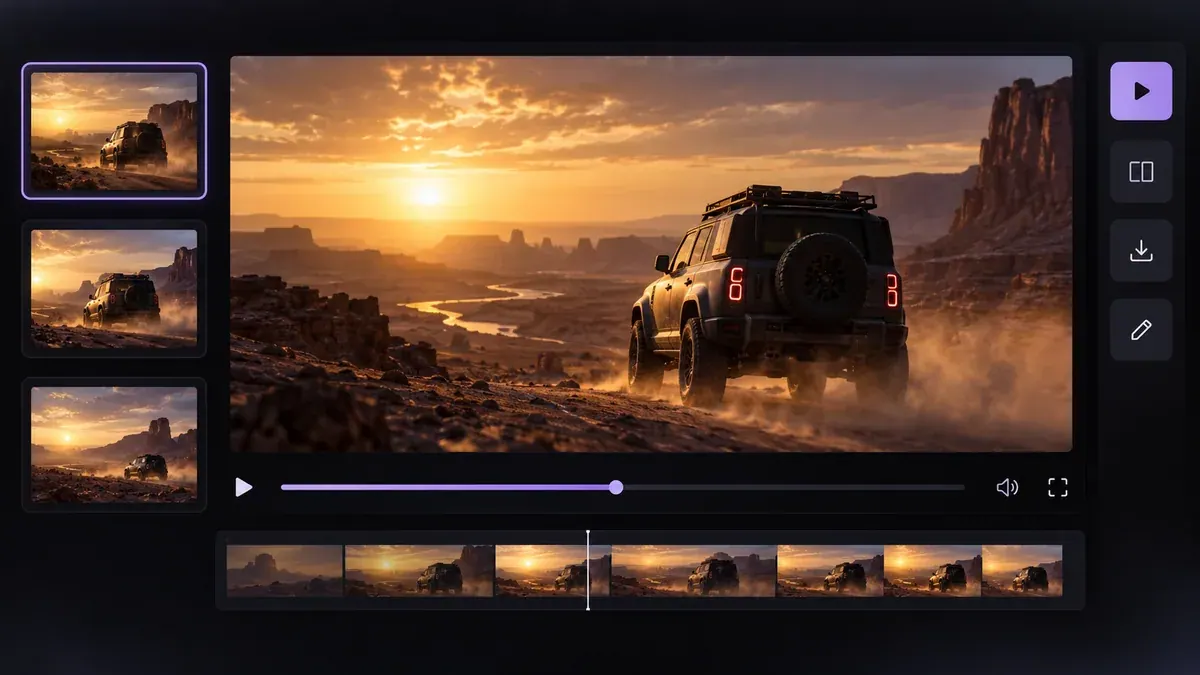
Generate and Review
Start the generation, track its progress, then preview and download the finished video or refine your prompt for another result.
Input
Text or Image
Start with a text prompt or supported image input.
Veo 3 Model
Choose a Model
Select from the Veo 3 models currently available.
Aspect Ratio
Available Formats
Choose an aspect ratio supported by the selected model.
Duration
Available Lengths
Select from the durations available for the current model and mode.
Resolution
Output Quality
Choose from the resolution options available for your selected model.
Reference
Reference Images
Add reference images when supported by the selected mode.
Direction
Prompt Controls
Describe motion, camera movement, lighting, pacing, and scene details.
Audio
Audio Direction
Describe dialogue, ambience, music, or sound when supported.
Direction
Prompt Controls
Describe the subject, action, camera movement, lighting, pacing, and visual details you want in the scene.
Audio
Audio Direction
Add dialogue, ambience, music, or sound cues when supported by the selected Veo 3 model.
01
Start Generation
Submit your video and review the estimated credit cost before generation begins.
02
Track Progress
Follow the generation status while your video is being created.
03
Preview Result
Review the completed video when generation is finished.
04
Download or Refine
Download the result or adjust your prompt and settings for another generation.
Input
Text or Image
Start with a text prompt or supported image input.
Veo 3 Model
Choose a Model
Select from the Veo 3 models currently available.
Aspect Ratio
Available Formats
Choose an aspect ratio supported by the selected model.
Duration
Available Lengths
Select from the durations available for the current model and mode.
Resolution
Output Quality
Choose from the resolution options available for your selected model.
Reference
Reference Images
Add reference images when supported by the selected mode.
Direction
Prompt Controls
Describe motion, camera movement, lighting, pacing, and scene details.
Audio
Audio Direction
Describe dialogue, ambience, music, or sound when supported.
How Veo 3 Video Creation Fits Together
connects the prompt or image you provide with an available video model and the settings that model supports.
Start by deciding what must remain fixed. Use text when the scene is open-ended, an image when the visual starting point matters, and reference controls when a compatible model offers tighter guidance.
Generation runs as a task rather than an instant edit. Review the completed clip, then change one part of the prompt, input, model, or setting at a time so the next iteration has a clear purpose.
3,600 credits for 365 days, with the displayed annual total charged upfront.
USD 179.40 · charged upfront · 3,600 credits · 365 days
Billing: charged upfront
Validity: 365 days
7,920 credits for 365 days, with the displayed annual total charged upfront.
USD 359.40 · charged upfront · 7,920 credits · 365 days
Billing: charged upfront
Validity: 365 days
17,400 credits for 365 days, with the displayed annual total charged upfront.
USD 719.40 · charged upfront · 17,400 credits · 365 days
Billing: charged upfront
Validity: 365 days
Veo 3 is our AI video and image creation platform. Choose a video model, create from a text prompt or reference image, and review the finished clip in your generation history. Veo 3.1, Seedance and other available models provide different controls for each workflow.
Choose Text to Video or Image to Video in our generator, then select a video model. Add a clear prompt and, for image-based generation, upload the required inputs. Set the available parameters, review the estimated credit charge, start the task, and follow its status in your generation history.
Yes. Choose Text to Video and describe the scene you want: subject, action, setting, camera direction, lighting, and any sound cues. The selected model creates the clip from the prompt, so no source image is required.
Yes. In Image to Video mode, one image can act as the starting frame, and you can optionally add an ending frame. Veo 3.1 Lite and Fast also offer a reference-image mode for up to three images; that mode is not available with Quality. Add a prompt to direct motion, camera behavior, and sound.
Yes. The current Veo 3.1 models generate audio with the video. Describe dialogue, ambience, sound effects, or music in the prompt; the Veo controls do not use a separate audio switch. Review the result for speech clarity and synchronization before publishing.
Our generator currently offers Veo 3.1 Lite, Veo 3.1 Fast, and Veo 3.1 Quality. Lite is the lower-credit option, Fast is intended for quicker iteration, and Quality is intended for higher-quality shots. The credit estimate updates for the selected model and resolution before you submit.
In our generator, Veo 3.1 output options are 720p, 1080p, and 4K, with Auto, 16:9 landscape, and 9:16 portrait framing. Not every combination is available in every generation mode; Reference to Video uses 16:9 or 9:16. Select a model first, then use the options shown for that task.
Describe the subject and one clear action first. Add the setting, framing, camera movement, lighting, visual style, pacing, and any audio cues that matter. Keep directions compatible and specific; when using an image, focus the prompt on what should move or change.
Start with a text prompt or image, choose a Veo 3 model, and adjust the available settings before generating your video.