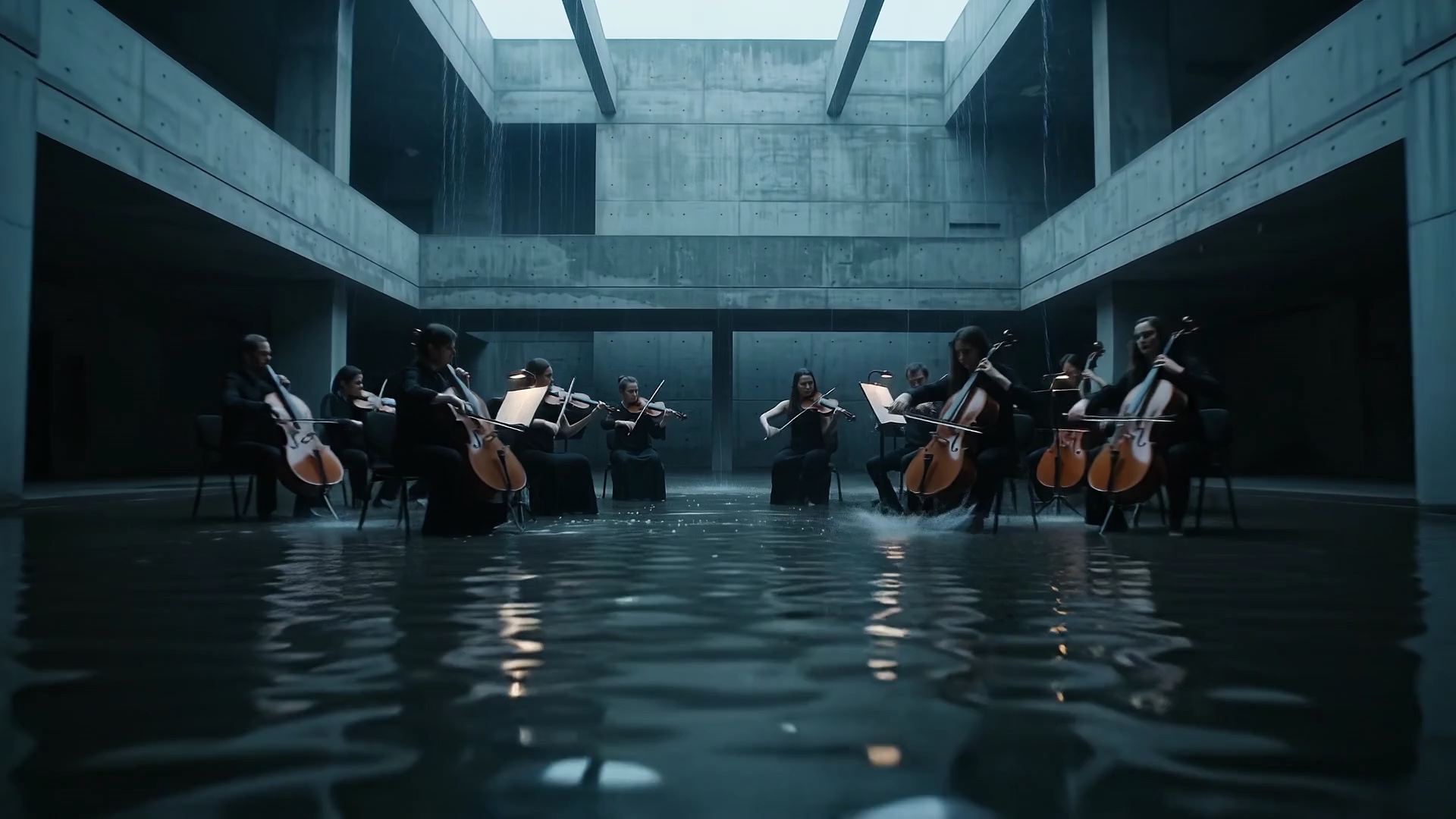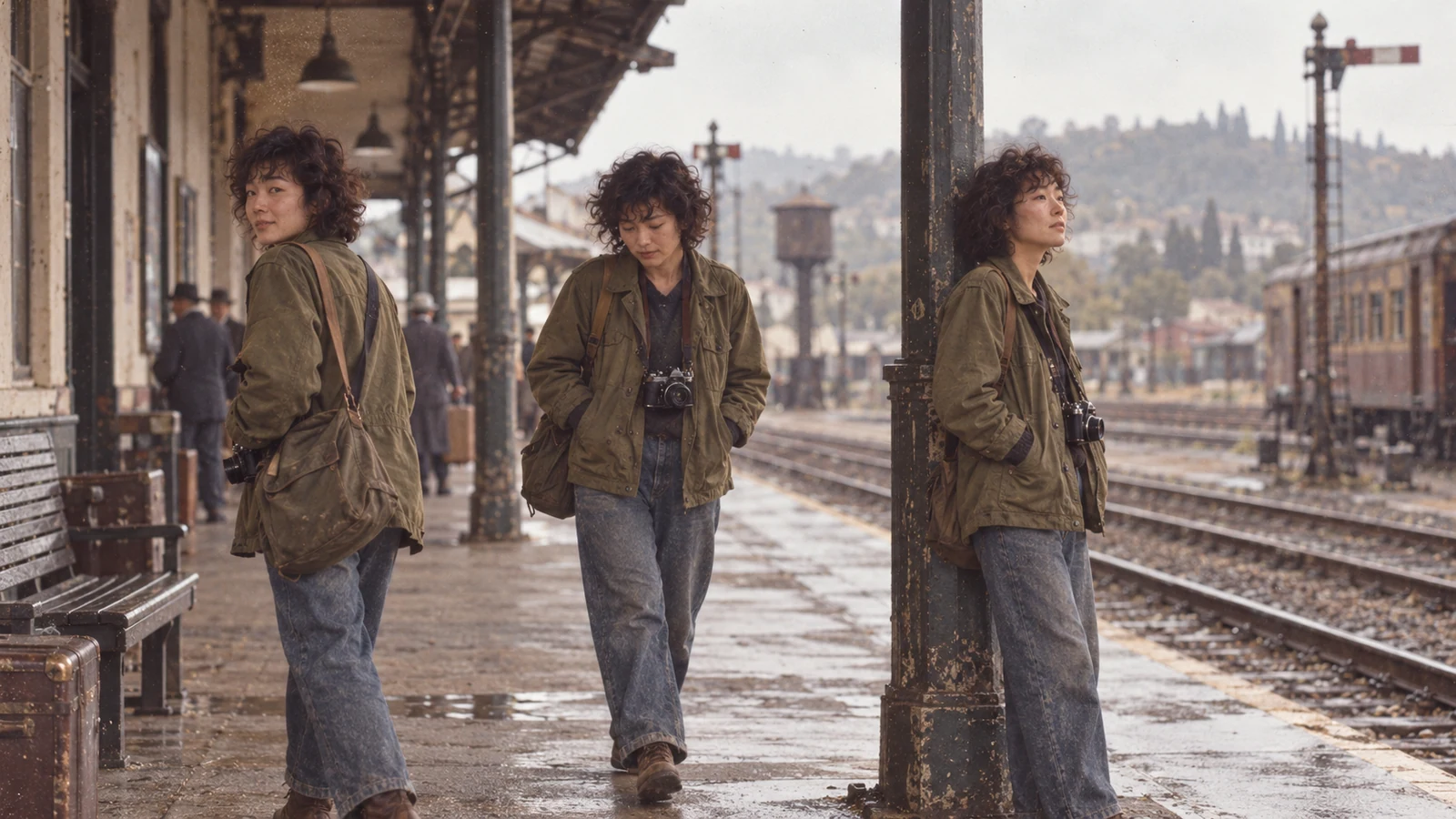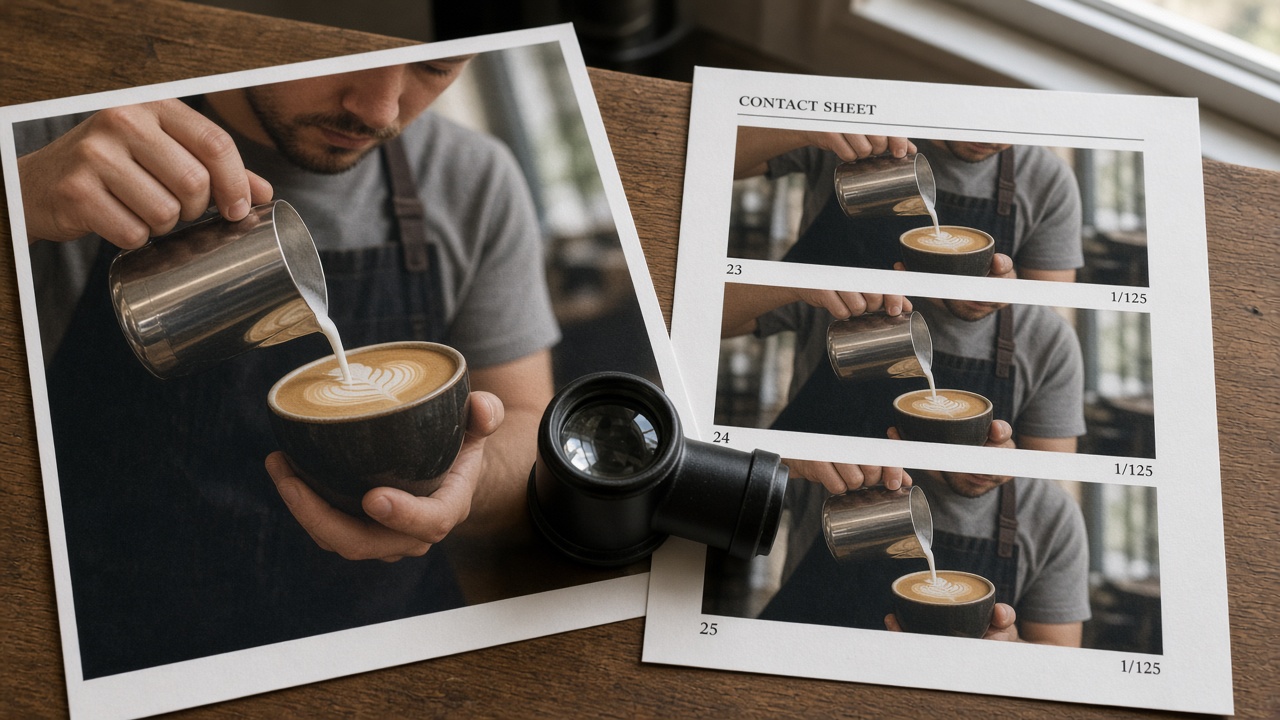
Field note: Treat the still as frame one you already signed off. Veo 3.1 image to video should preserve that crop—not invent a second art pass. If the photo is not an approved first frame, skip I2V.
Most “animate this photo” runs fail the same way: the model redraws the hero, widens the crop, or invents a new set while you still think you are locking composition. This page is a first-frame lock notebook for Veo 3.1—how to prep a still that can survive motion, how to spot drift after one take, and when to abandon I2V for a text path. It is not another paste-formula prompt guide; the sister DP article owns five-part text briefs without a still.
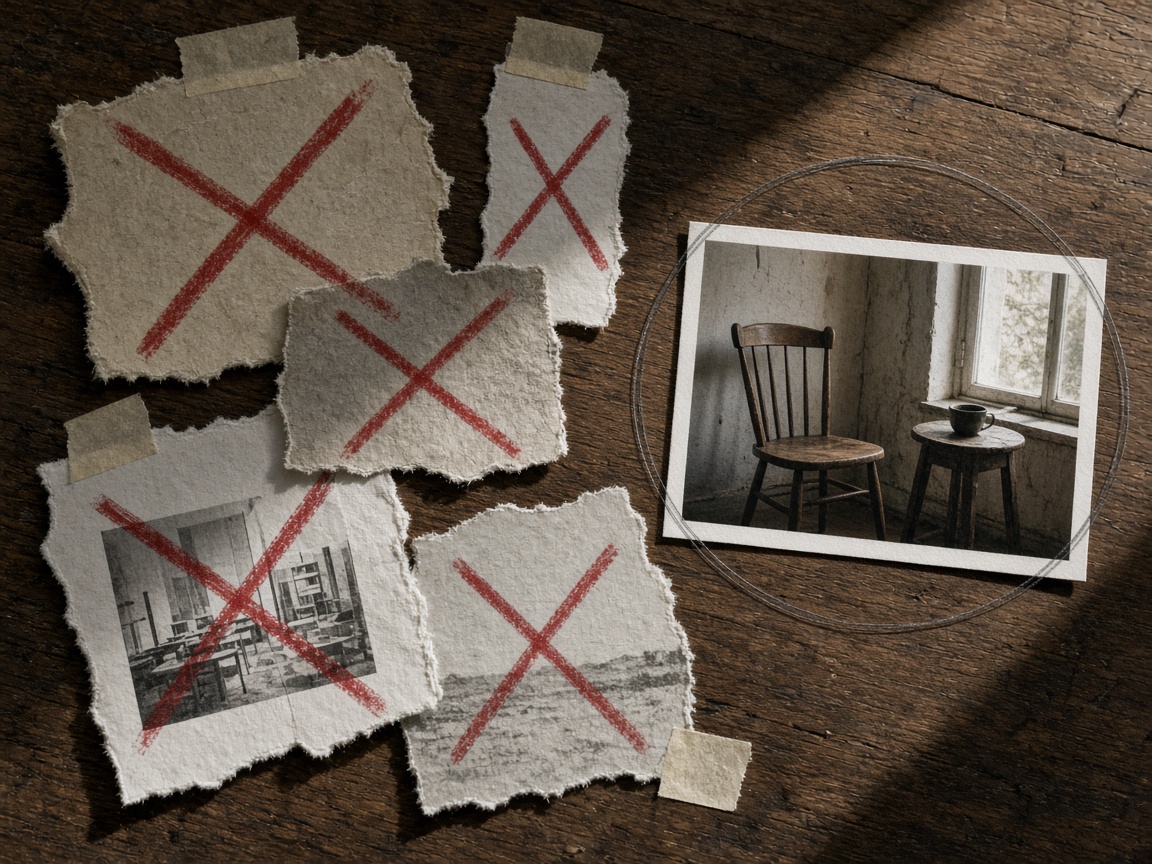
Still Acceptance Before You Animate
Decide whether the still can be frame one before you open motion fields. A soft, busy, or wrong-aspect photo will drift no matter how carefully you word the take.
Still acceptance checklist
- Hero readable at thumbnail size — face or product not cropped at the edge.
- One clear subject — busy backgrounds invite a second invented hero.
- Lighting already decided — do not ask the motion pass to “make it golden hour” if the still is noon flat.
- Aspect matches delivery — 9:16 still for vertical; 16:9 for wide. Mismatched stills force awkward pans.
- Export clean — no heavy UI chrome, watermarks, or burned-in captions you do not want animated.
Upload that still as the start frame in on-site AI image to video. Confirm the crop preview matches the frame you signed off. Then keep the text short: name what may move and how the camera behaves—do not restate wardrobe, color, or set dressing the pixels already show.
Accident / drift对照 — after one take, match the failure to a row and fix the still or the motion line, not both at once:
| What you see | Likely cause | Fix on the next take |
|---|---|---|
| Wardrobe / hair color morphs | Text re-described what the still already owns | Delete nouns the photo already shows; lock identity in one short keep line if needed |
| Crop wanders off the hero | Vague “cinematic” camera ask | Name one production move only (slow push-in, static locked-off) |
| Limbs / props smear | Three motions stacked in one beat | One primary move; optional secondary only |
| Hard cut to a new room | End note described a new location | End = same set, new pose or prop state |
| Second face appears | Busy group still | Crop to one hero before upload |
When the still fails the checklist, stop. Do not burn credits “prompting harder.” Either re-export a delivery-matched still or leave I2V.
When to Skip I2V for the Text Path
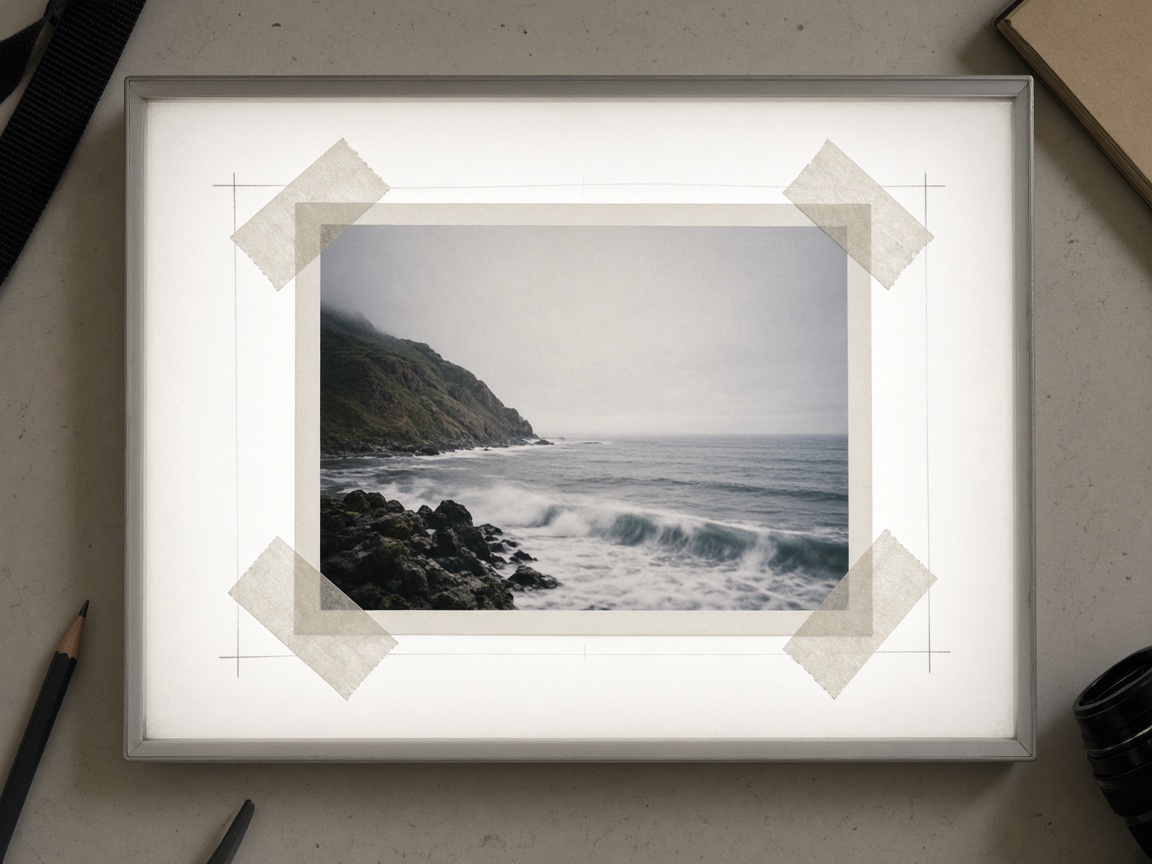
I2V is for preserving an approved frame. It is the wrong door when you still need art direction.
Skip I2V when any of these is true
- The file is a rough sketch or moodboard you do not want as frame one.
- You need a different location, cast, or wardrobe than the photo.
- The crop is already wrong for the platform (square still forced into 9:16).
- You only have a logo on white and expect a full commercial scene—the model will invent a set you did not approve.
Decision line: If you would not ship the still as the opening frame of the edit, do not feed it to I2V. Write a text brief instead and generate from the on-site AI video generator, or reshoot/export a still that already matches delivery. The sister DP prompt-guide owns the five-part text skeleton; stay on this page only while you are locking a real first frame.
Boundary (what this page is not)
- Not a multi-model picker sales page.
- Not a rewrite of the site’s older generic image-to-video howto.
- Not the DP five-part text pillar with copy-paste formula blocks—that sister article covers text-only briefs.
Next action
Pass the still through the checklist, upload once, watch one take against the drift table—then either lock the frame or switch doors. Start from the image-to-video door linked in the field note above.
Related
- Pricing — plans and credit notes.
- How to Prompt Veo 3.1 Like a DP — sister text formula (no still).
- Blog — other Veo tutorials.
- How to turn an image into a video with AI — older generic I2V (different skeleton).
- Image to Video · AI video generator