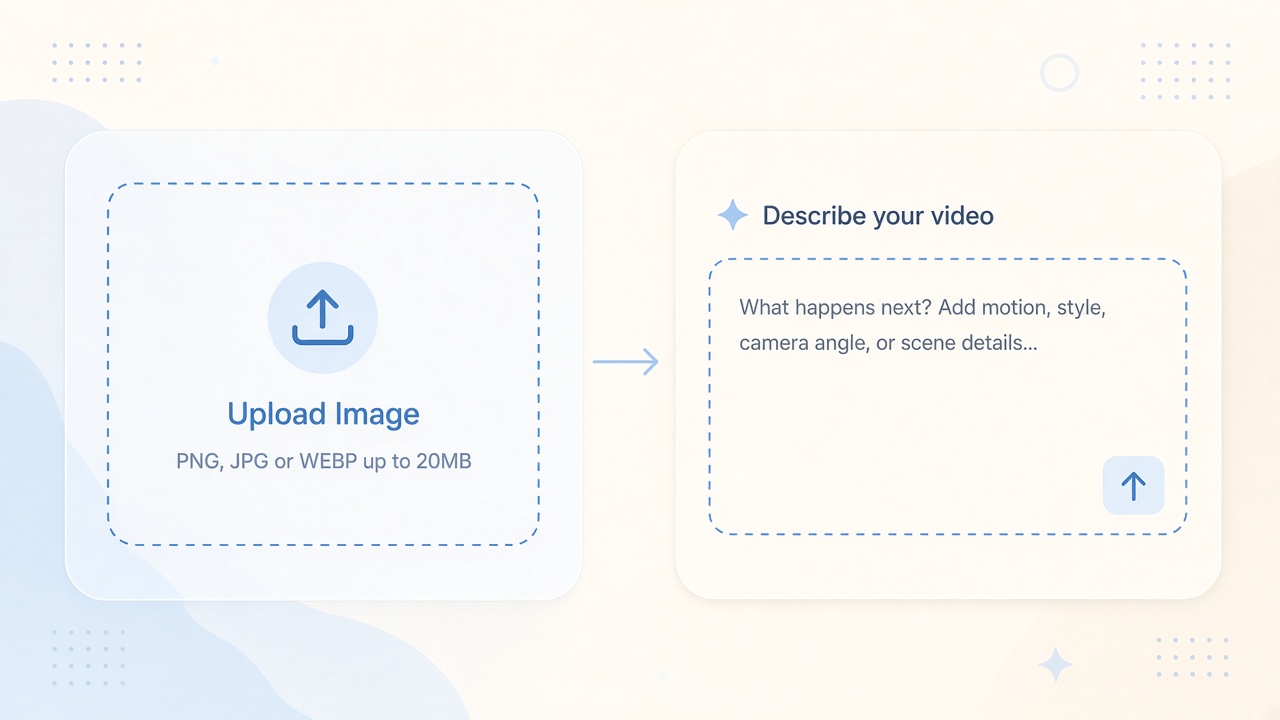
How to Turn an Image into a Video with AI
文章目录
How image-to-video works on Veo 3
To turn an image into a video with AI, upload a still as your starting frame, write a short prompt that describes how the subject should move and how the camera should behave, optionally add an end frame or a reference image, then generate and review the clip. On [Veo 3 Image to Video](https://veo-3.app/image-to-video), that workflow lives in Image to Video with Veo 3.1 Lite, Fast, or Quality—so you can go from a photo or frame grab to a few seconds of motion without rebuilding the scene from text alone.
This guide is the image-first path. If you are still learning prompts, models, and revisions in general, pair it with our broader walkthrough, [How to Make AI Videos with Veo 3: Prompts, Models, and Revisions](https://veo-3.app/blog/how-to-make-ai-videos-with-veo-3)—this article stays on stills, start/end frames, and motion prompts.
What “image to video” actually does (and what it does not)
Image-to-video models take one or more pictures and invent the frames between (and after) what you showed them. The still anchors identity—who is in the shot, wardrobe, lighting. The prompt steers change over time: a head turn, a push-in, wind in fabric, a door opening.
It does **not** fix a weak still. Soft focus, heavy compression, or a face cut off at the edge will follow you into the clip. It also does not replace multi-shot planning; here we assume you already have the frame you want to animate.
On Veo 3, Image to Video is built for that anchored motion: start frame, optional end frame, optional reference, plus language for movement, camera, and sound when the model supports it.
What you need before you generate
Gather four things so you are not guessing mid-run:
1. **A clean still** — Prefer a sharp, well-lit image. Product shots, portraits with clear edges, and concept art with readable silhouettes work better than busy collages. 2. **One sentence of intent** — Not “make it cinematic.” Something like: “Slow push-in as she turns toward the window; curtains move in a light breeze.” 3. **Aspect ratio** — Match the destination (16:9 for YouTube, 9:16 for Shorts/TikTok, 1:1 for feeds). Changing ratio after generation wastes credits. 4. **A revision budget** — First takes often need a tighter prompt or a clearer end frame. Plan for two or three generations, not one perfect hit.
Optional but powerful: a second image for the **end frame**, or a **reference** that locks character or style while the main still drives composition.
Step-by-step: turn one image into a short clip
Follow this loop on [Veo 3 Image to Video](https://veo-3.app/image-to-video):
**1. Open Image to Video** Choose Image to Video rather than a blank text-only generate. You are telling the model “start from this pixels,” not “invent the whole scene.”
**2. Upload your start image** Use the frame that should appear at (or near) the beginning. Crop distracting borders first. If the subject is tiny in the frame, reframe so the action you care about is large enough to read after motion.
**3. Describe motion, camera, and optional sound** Write what changes. Good prompts name: - **Subject action** — walks forward, smiles, lifts the cup - **Camera** — slow dolly in, gentle pan left, locked tripod - **Environment** — rain on the glass, steam rising, neon flicker - **Pace** — two-second settle, then a quick glance
Keep it concrete. “Epic energy” does less work than “handheld micro-shake as he runs through the corridor.”
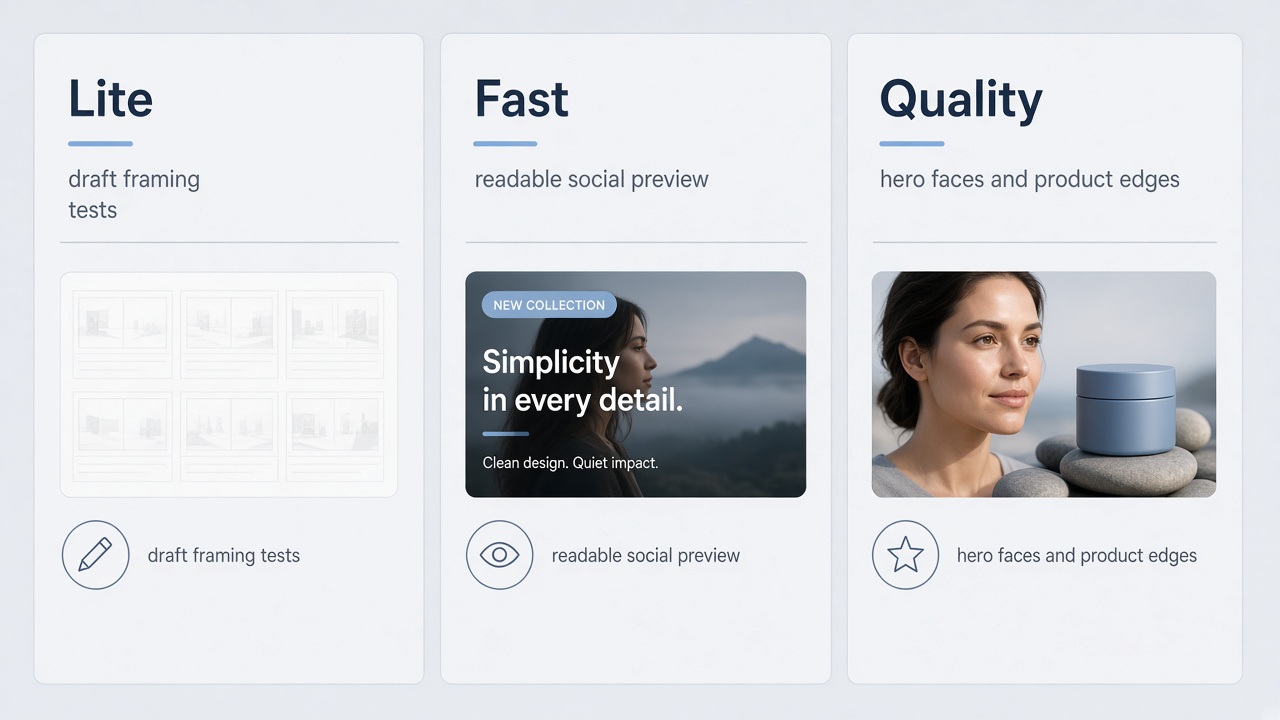
**4. Pick a model tier** Lite for drafts and framing tests, Fast when you need a readable pass quickly, Quality when identity and fine motion matter. Details below.
**5. Generate** Run once. Do not stack five conflicting instructions in the first try—one clear beat is easier to debug.
**6. Check, then revise** Watch for face melt, limb jitter, background swim, and ignored camera moves. Change one variable per retry: prompt wording, end frame, or model tier—not all three at once.
That is the whole core loop: **upload → describe motion/camera → generate → inspect**. Everything else in this article is how to make that loop more reliable.
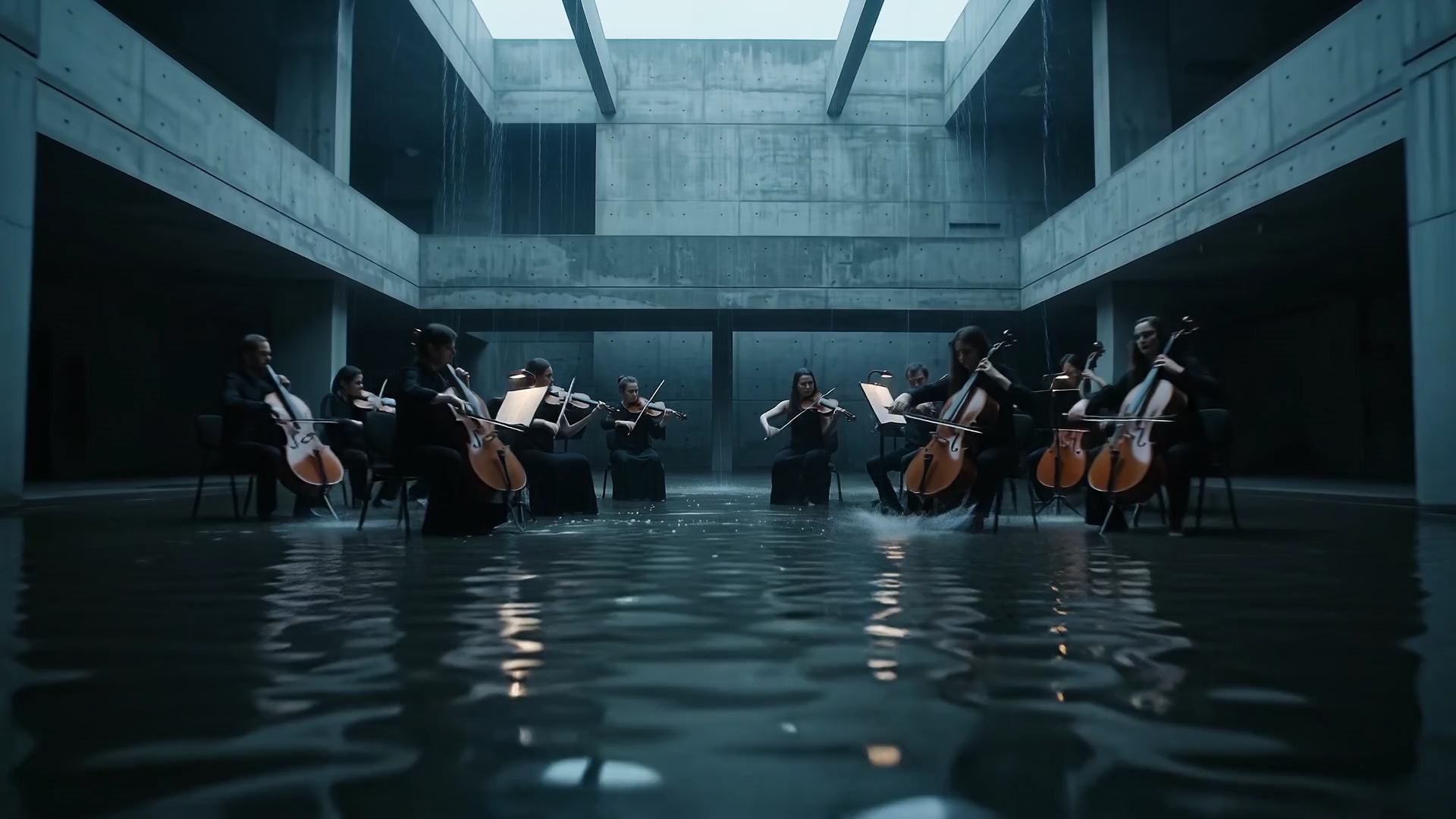
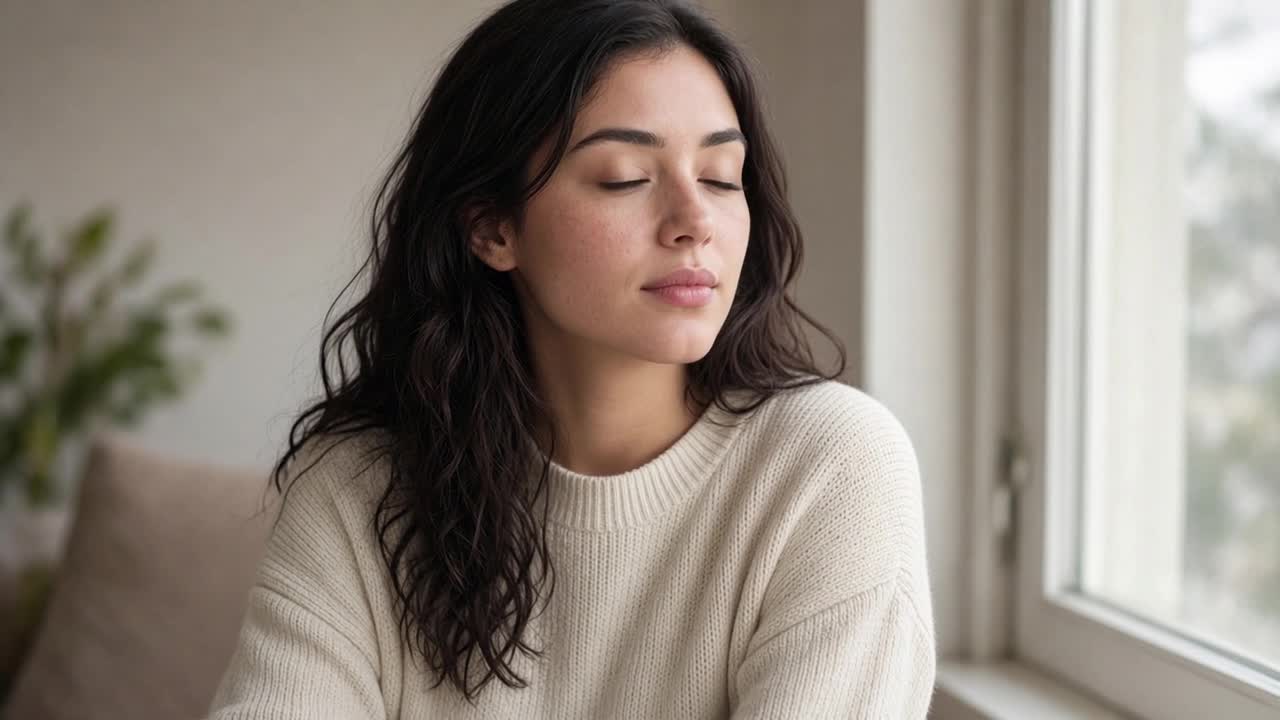
Start frame
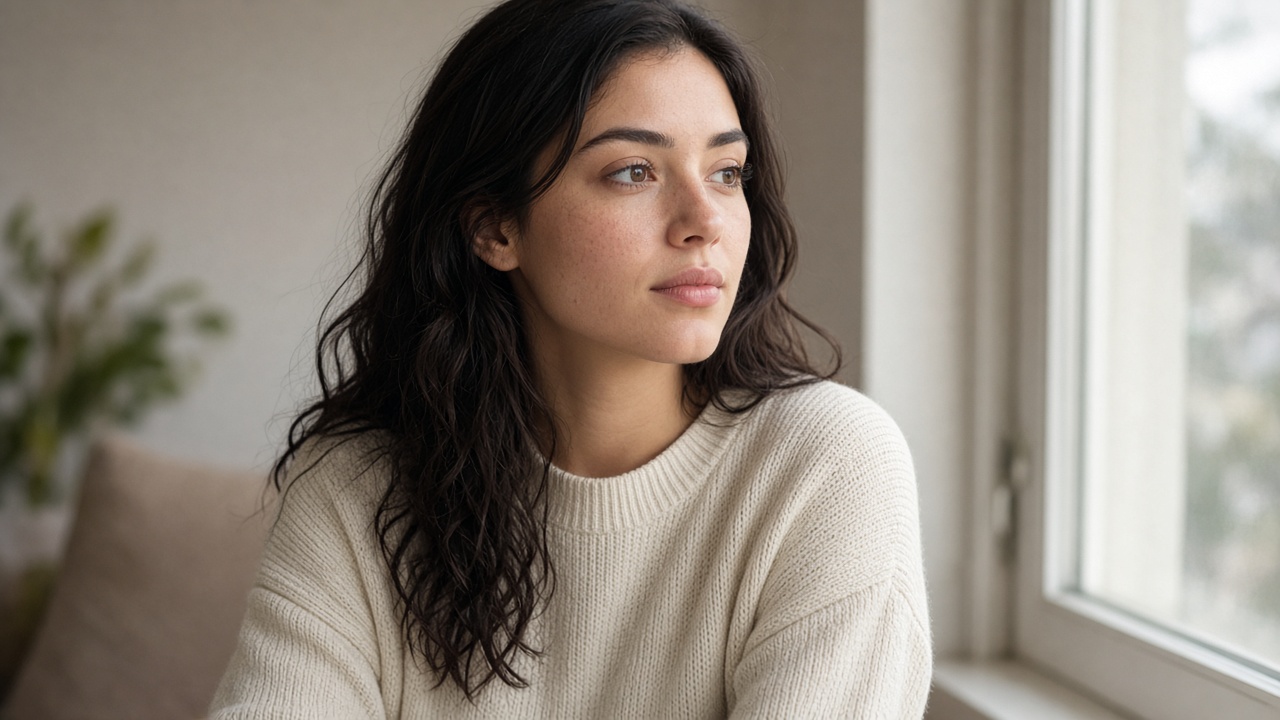
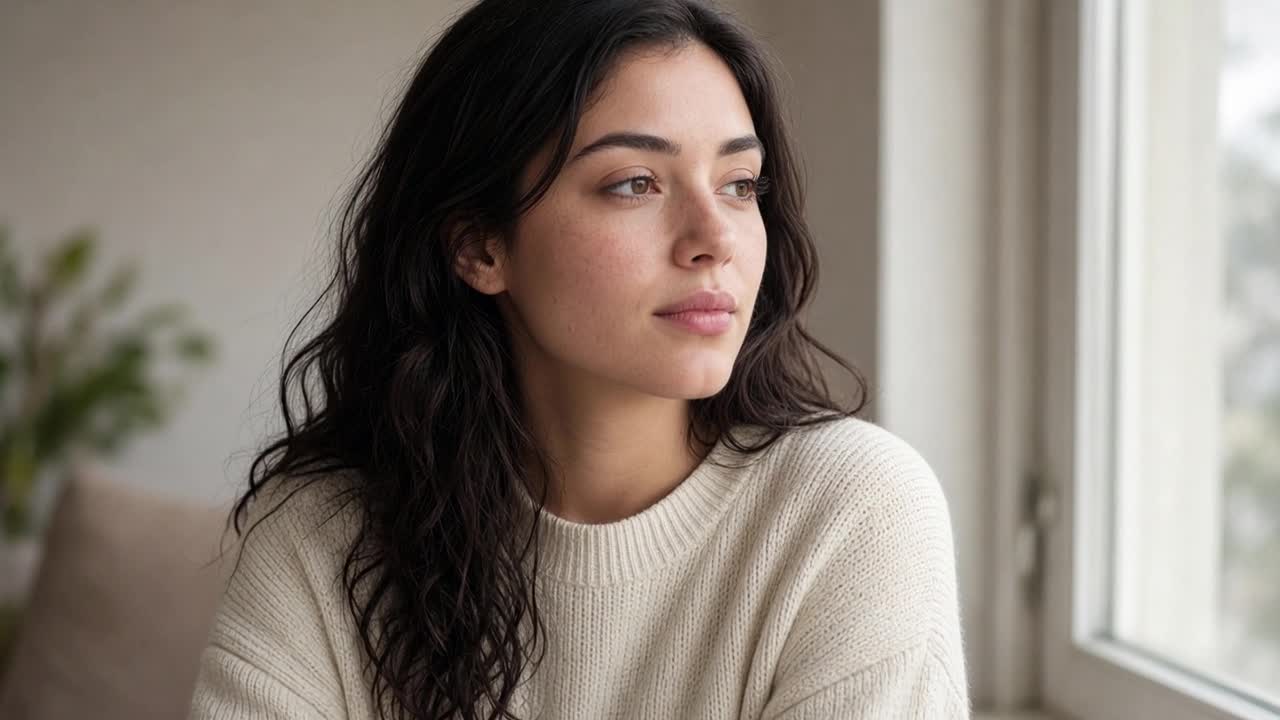
Generated push-in (poster)
Using a start frame and an end frame
Many people search for “image to video start and end frame” because they want controlled transitions, not random animation. Veo 3’s Image to Video path supports that idea: the start image defines where the clip begins; an end image defines where it should land.
**When an end frame helps** - A product that must finish in a hero angle - A character who should end looking at camera - A landscape that shifts from day to dusk - A logo lockup that resolves from a soft scene into a clean mark
**How to brief start + end** - Make the two images **compatible**: same character, similar framing language, consistent lighting family. A sunny start and a neon cyberpunk end fights the model. - Let the prompt describe the **journey**, not a second copy of both stills. Example: “Continuous slow orbit from the three-quarter start to the frontal end; soft key light holds on her face.” - Avoid asking for a hard cut inside a single short generation—start/end framing is about interpolation and drift, not editorial cutting.
If you only have one strong still, skip the end frame. A weak or mismatched end image is worse than none.
Start / end diptych
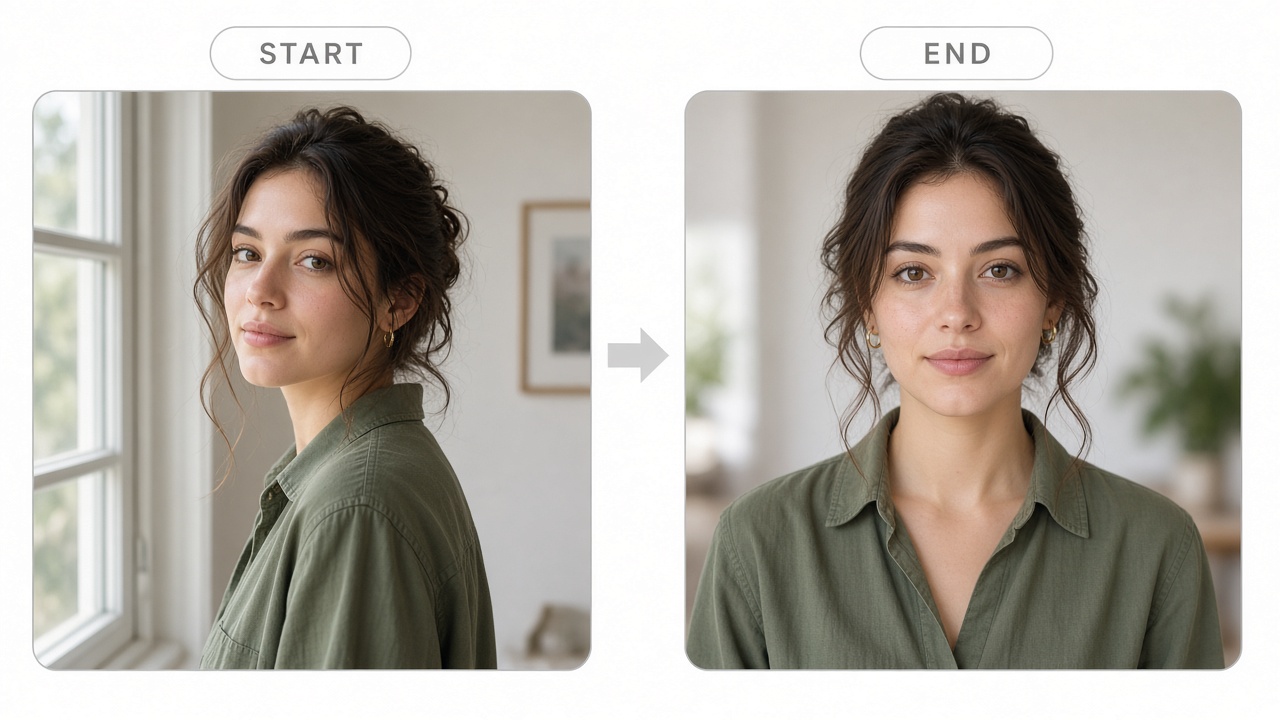
Start→end interpolation (poster)
Reference images vs a single still
A **start frame** means “begin looking like this.” A **reference image** means “keep identity or style consistent,” even if composition changes. Use reference for a character face you must not lose, a brand look, or the same person across shots. Use a single still when one photo, one camera move, and one payoff *are* the story. Multi-shot continuity pipelines belong in other posts; this piece stays on the single-clip image-to-video pass.
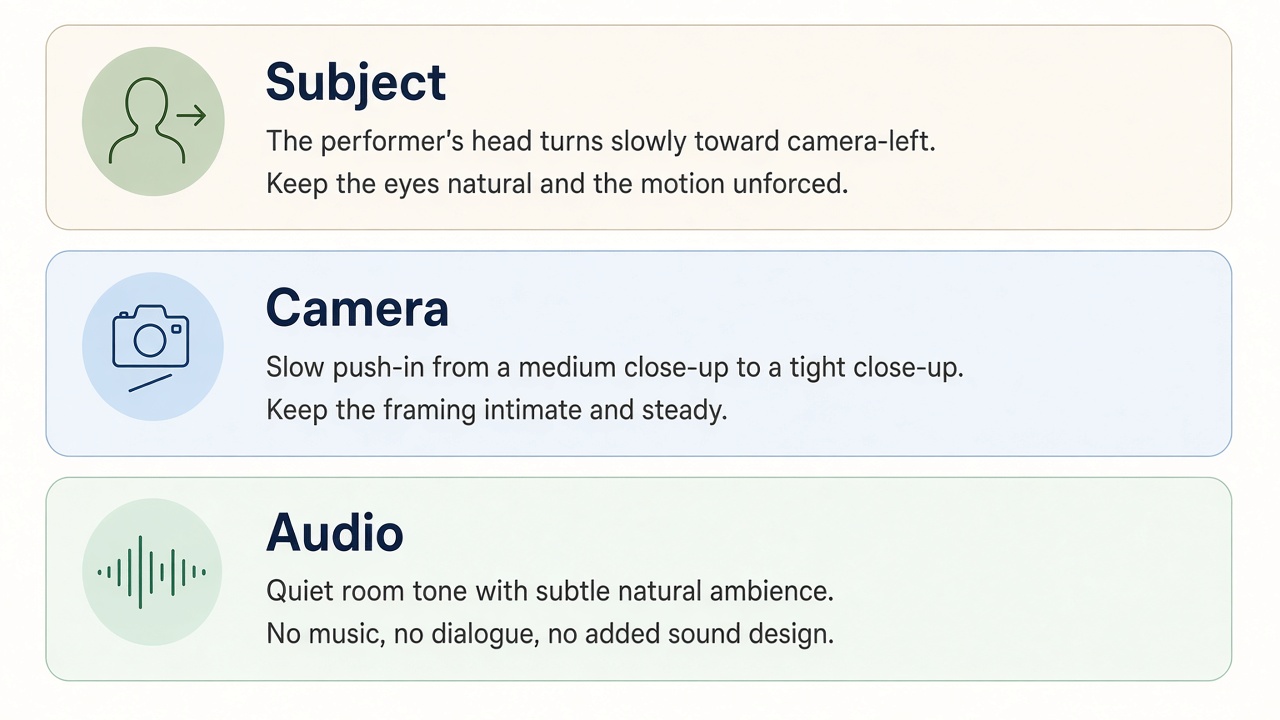
Writing the motion prompt (camera, subject, sound)
Image-to-video prompts fail when they re-describe the still. The model can already see the pixels. Spend tokens on **change**.
**Subject layer** “She turns her head 30 degrees toward camera and exhales” beats “a beautiful woman in a coat.”
**Camera layer** Name a readable move: static, push-in, pull-back, pan, tilt, orbit, crane up. One primary move per short clip. If you need deep camera vocabulary, that belongs in a dedicated camera-prompt article—here, pick one move and stick to it.
For more on [camera direction in the Veo 3 workflow](https://veo-3.app/blog/how-to-make-ai-videos-with-veo-3), use that general howto—here, pick one move and stick to it.
**Lighting and atmosphere** Mention light only if it should *change*: lamps warm up, fog thickens, sun breaks through.
**Sound (when available)** With Veo 3.1, add a short bed—“quiet room tone,” “fabric rustle”—not a dialogue screenplay unless lip sync is a later step.
**Template you can copy**
```text Start from the uploaded frame. [Subject action in plain language]. Camera: [one move + speed]. Environment: [one changing detail]. Mood stays consistent with the still. Optional audio: [brief bed]. ```
Swap the brackets; keep the structure.
Prompt layers: subject / camera / audio
Choosing Veo 3.1 Lite, Fast, or Quality
Think in jobs, not brand names:
| Job | Lean toward | Why | |-----|-------------|-----| | Testing crop, end-frame fit, prompt clarity | **Lite** | Cheap iteration; you are debugging intent | | Client preview / social draft with readable motion | **Fast** | Balance of speed and coherence | | Hero stills, faces, product edges, final export | **Quality** | Spend credits where identity must hold |
A practical pattern: Lite until the motion sentence works, one Fast confirmation, Quality for the keeper. Jumping straight to Quality with a vague prompt burns credits without teaching you what failed.
Lite / Fast / Quality jobs
Check the result: fix common image-to-video problems
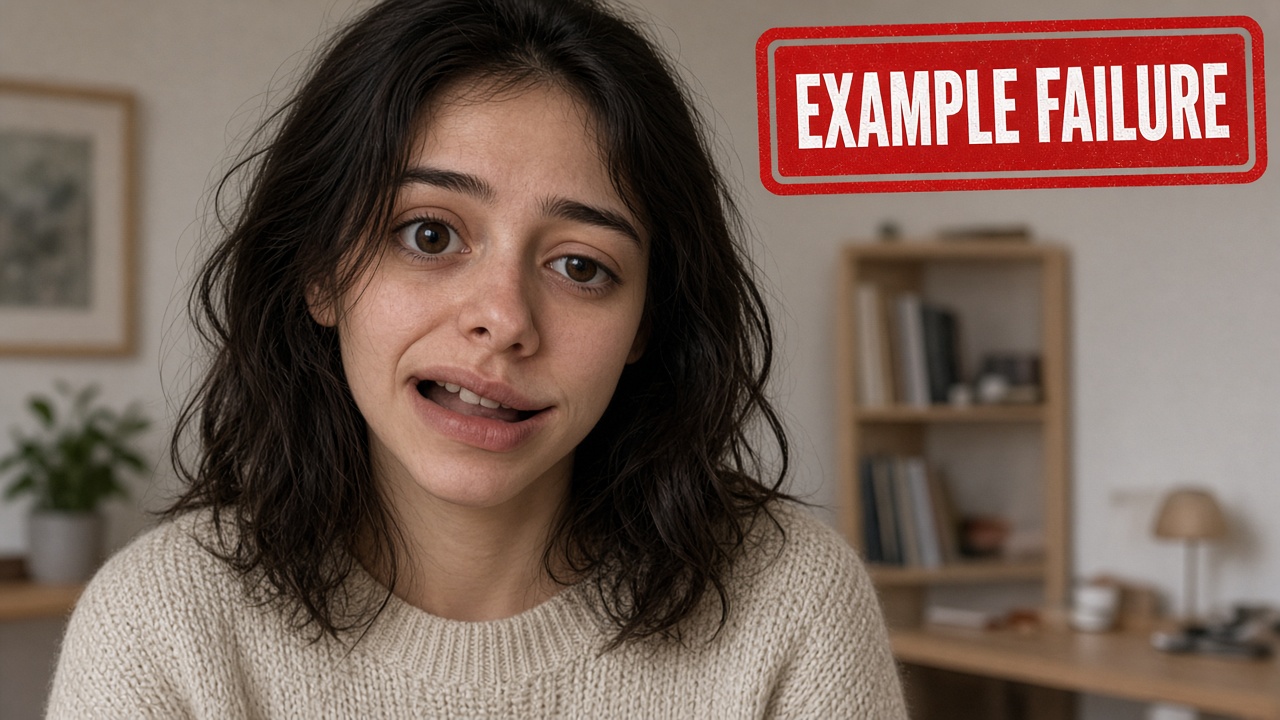
**Face or logo warps** Tighten the crop so the face/logo is larger; shorten the motion (“subtle smile” instead of “spins around”); move to Quality; or add a compatible end frame that preserves the face angle.
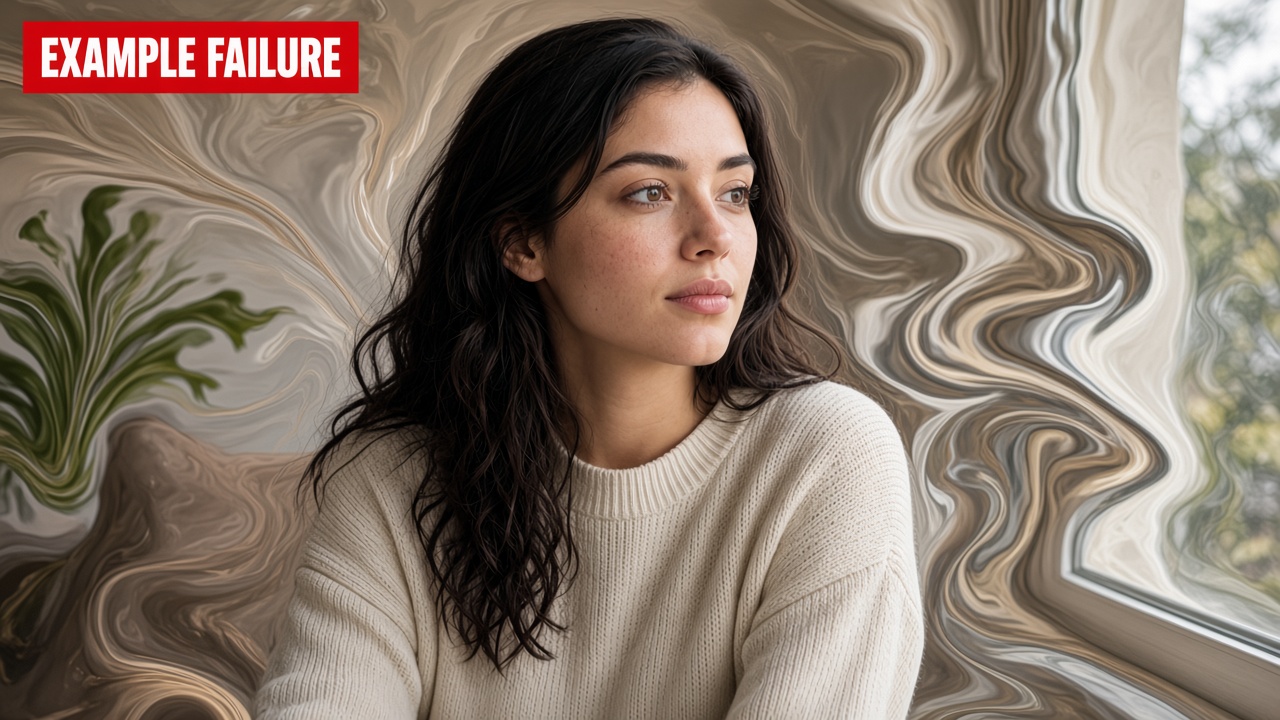
**Background melts while the subject is fine** Ask for a locked camera and subject-only motion. Busy backgrounds plus a sweeping orbit is a common failure mode.
**Prompt ignored** You probably restated the image. Delete adjectives about appearance; keep verbs about motion. Generate again with half the words.
**Too much motion / seizure zoom** Specify speed: “very slow push-in over the full clip.” Remove words like “dynamic,” “intense,” “rapid” unless you truly want them.
**Wrong aspect for the platform** Re-generate in the right ratio. Stretching in an editor will show.
**Identity drifts across retries** Reuse the same start (and reference) every time; change only the motion sentence.
Example failure: face warp
Example failure: background melt
When to use text-to-video instead
Stay on image-to-video when you already own the look. Switch to text-to-video when you have no still yet, or need a scene invented from scratch. A common hybrid: draft in text-to-video, pick a frame, then run that frame through image-to-video for controlled motion. Open either door from [Text to Video](https://veo-3.app/text-to-video) or [Image to Video](https://veo-3.app/image-to-video).
FAQ
**Can I turn any photo into a video with AI?** Most photos can move, but results track input quality. Blurry selfies and tiny faces animate poorly. Start with a sharp, well-framed still.
**Do I need both a start and an end frame?** No. Start alone is enough for many clips. Add an end frame when the finishing composition matters.
**How long should the prompt be?** A few clear sentences beat a paragraph of style synonyms. Lead with action and camera.
**Is image-to-video free on Veo 3?** Veo 3 offers free access with credits for generation. Exact allowances change with plans—check live [Veo 3 pricing](https://veo-3.app/pricing) (credits and plans) before a long batch. A deeper “free Veo 3 / credits” article is on our keyword roadmap; this howto stays on the workflow.
**How is this different from the general Veo 3 howto?** The general guide covers prompts, models, and revisions across modes. This article only covers turning a still into motion—including start/end frames and motion-first prompting.
Next steps on Veo 3
1. Open [Image to Video on Veo 3](https://veo-3.app/image-to-video) with one strong still. 2. Write a motion-first prompt (subject + one camera move). 3. Generate on Lite, inspect, then promote the winner to Fast or Quality. 4. If you need stronger prompt craft across modes, continue with [How to Make AI Videos with Veo 3](https://veo-3.app/blog/how-to-make-ai-videos-with-veo-3).
Turning an image into a video with AI is not a mystery button—it is a short, repeatable loop: upload the frame, say what should move, generate, and revise with one change at a time. Start with a still you already like; let Veo 3 handle the frames in between.
Upload + prompt CTA