

Getting a usable AI clip can feel harder than it should. Vague prompts burn credits. The wrong model tier either under-delivers or overspends. And when every revision feels like a guess, creators often abandon the look they liked—or settle for a take that almost works.
Learning how to make AI videos with Veo 3 does not have to mean rebuilding your process around a heavy studio workflow. On Veo 3, you can go from a clear brief to a finished clip with text-to-video or image-to-video, choose Veo 3.1 Lite, Fast, or Quality on purpose, review a credit estimate before you generate, then refine in My Creations—one deliberate change at a time.
In this guide, we walk through what you can make with Veo 3, how to structure your first generation on the Veo 3 platform, how the model tiers differ, and the professional habits that keep revisions cheap and useful.
What You Can Make with Veo 3
Just as with still-image generation, Veo 3 supports a wide range of creative jobs. Most day-to-day work falls into a few large categories. Let’s explore each.
Text-to-Video Scenes
Text to video is the open-brief path: you describe subject, action, setting, camera, lighting, and sound in one readable prompt, then let Veo build the motion.
Here are some practical use cases:
- Pitch a product beat without a shoot day. Describe a hero product on a clean table, a slow push-in, soft key light, and a short ambient bed—then review whether the motion sells the idea before you book a camera.
- Storyboard a dialogue moment. Write two characters, one exchange of lines, and a simple over-the-shoulder move so you can feel pacing and tone before locking a script.
- Explore environment and weather. Prompt a coastal highway at dusk with wet asphalt reflections, or a quiet office with afternoon haze, to test mood without rescheduling a location day.
Figure 5. Sample text-to-video beat (16:9). Play the video above to review the scene motion.
Image-to-Video and Locked Composition
Image to video is the locked-identity path: upload a starting frame (and an ending frame when the mode supports it), then write only what should move.
Here are some practical use cases:
- Animate a finished still. Take a strong key art or product photo, upload it as the start frame, and ask for a subtle camera drift or a single prop interaction so the composition stays intact.
- Bridge two storyboard frames. Provide a first and last image when supported, then describe the motion that connects them—useful for openings and closings that must match art direction.
- Protect character or brand identity. When face, wardrobe, or packaging must stay consistent, lead with the image and keep the prompt short: name the action, keep everything else the same.
Figure 6. Sample image-to-video from a locked start frame. Play the video above to review composition and action.
Format, Resolution, and Channel Fit
Output choices are part of the creative brief, not an afterthought. On Veo 3, common options include 720p, 1080p, and 4K, with Auto, 16:9, and 9:16 where the mode allows.
Here are some practical use cases:
- Widescreen story and ads. Use 16:9 when environment and camera path carry the idea—product films, trailers, and site heroes.
- Vertical social clips. Use 9:16 when the subject must fill the frame quickly—hooks, explainers, and short performance beats.
- Resolution by stage. Draft in 720p or 1080p while you learn the brief; reserve 4K for hero passes once framing and action are solid.
Figure 7. Sample 9:16 social beat. Play the video above to review the vertical pacing.
Sound with the Clip
Current Veo 3.1 models generate audio with the video. You do not hunt for a separate toggle—you describe dialogue, ambience, or effects in the same prompt as the picture.
Here are some practical use cases:
- Native dialogue. Write a short line, who speaks it, and the space (close mic vs. roomy hall) so lip timing and tone have something to aim at.
- Environmental beds. Name rain on glass, café murmur, or distant traffic so the clip feels finished without a separate sound session.
- One sound event. Call out a door close, a glass clink, or a whoosh on the camera move—then keep the rest of the mix simple.
When a Different Motion Stack Helps
Veo is the default when you want its motion and sound character. Some briefs need another feel—multimodal references, multi-shot planning, or a different motion grammar. On the same platform, Seedance 2.0 covers multimodal short scenes. Keep Veo for the look you already like; switch only when the brief demands it. For prompt formulas and reference tips, see How to make videos with Seedance 2.0.
How to Make an AI Video with Veo 3
To make an AI video with Veo 3, start in the AI video generator (or the home generator).
- Choose Text to Video or Image to Video. Use text when the scene is still open. Use image when composition or identity is locked.
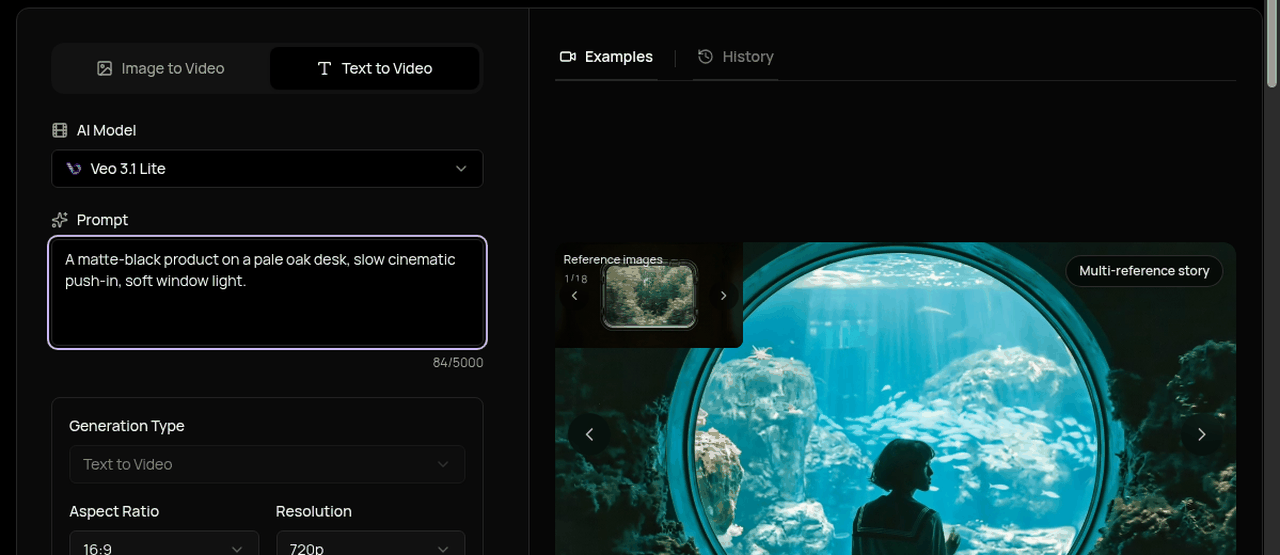
Figure 1. Choose Text to Video or Image to Video before you write the beat.
- Select a Veo 3.1 model tier. Pick Lite, Fast, or Quality to match the job (more on each below).
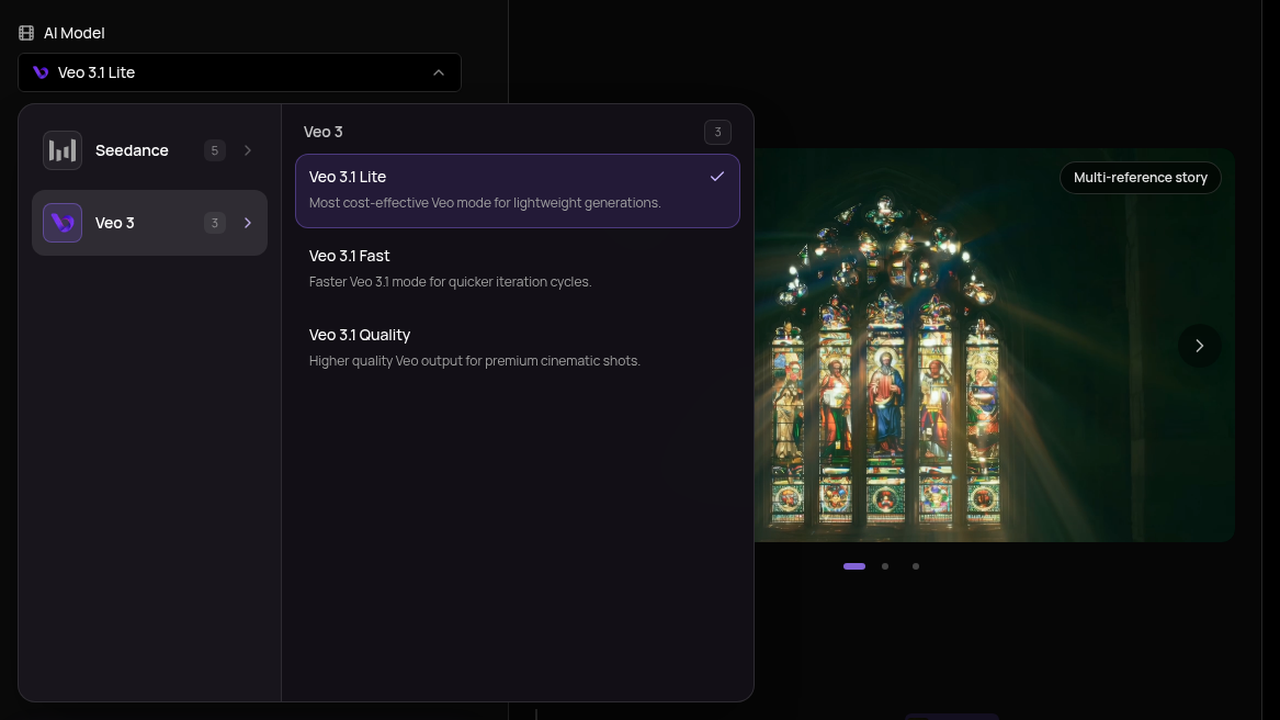
Figure 2. Pick Veo 3.1 Lite, Fast, or Quality to match the stage of the shot.
- Write one readable beat. Subject, action, camera, lighting, ending hold, and any sound that matters—complete sentences beat keyword piles.
- Set aspect ratio, duration, and resolution from the options shown for that mode.
- Read the credit estimate before you submit. Budget at least one controlled revision for important shots.
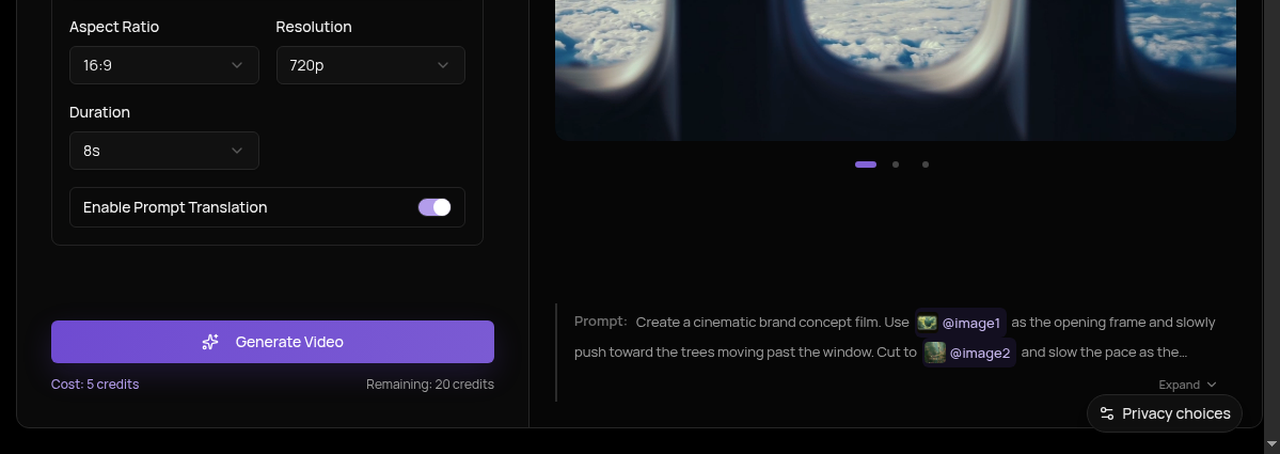
Figure 3. Check the credit estimate before you generate.
- Generate, then open My Creations. Preview, compare takes, download winners, and note what you will change next.
A better workflow, however, is to couple a clear prompt with a strong reference image when identity matters:
- Export or design a start frame that already shows the look you want.
- Upload it for image-to-video.
- Keep the text prompt short: state the motion, then ask the model to keep the rest of the scene intact.
When you are ready, confirm the model and settings, then generate. Change one instruction on the next take—camera, then sound, then action—so each credit teaches you something.
Veo 3.1 Models for Video Generation
Generating a clip is not one-size-fits-all. On Veo 3 you can choose among Veo 3.1 Lite, Veo 3.1 Fast, and Veo 3.1 Quality. Match the tier to the stage of the shot, not to every experiment by default.
Veo 3.1 Lite
Lite is the efficient tier for learning the brief and checking framing. It costs fewer credits, which makes it the right choice when you are still discovering subject, camera language, or whether a scene idea holds at all. Use Lite for first passes, rough timing, and “does this prompt even work?” tests.
Veo 3.1 Fast
Fast is built for quicker iteration when the idea is clear but the details are not. Compare camera moves, sound cues, or small action changes without jumping straight to the highest-cost pass. Use Fast when you already like the framing and need several controlled variants in one session.
Veo 3.1 Quality
Quality is the higher-finish tier. Because it costs more, apply it strategically: when the draft direction is solid, the prompt is stable, and finish matters for client review or final delivery. Quality is the best option for hero shots where continuity, detail, and polish are required—not for every exploratory take.
Seedance 2.0 (when the brief needs it)
When you need multimodal references or a different motion stack beside Veo, open Seedance 2.0 on the same site. Treat it as a parallel path for short cinematic scenes, not as a replacement for every Veo job. The companion tutorial covers prompt formulas and multimodal tips in depth.
Professional Tips for Better Veo 3 Takes
Write a Complete Beat, Not a Keyword Bag
Subject + action + camera + lighting + ending + sound beats a list of adjectives. The model responds better to one readable sentence than to twenty disconnected words. If you only need a targeted change on a revision, say exactly what should move and instruct the model to keep everything else the same.
Use a Reference Image When Identity Matters
Relying entirely on text is rarely enough when face, product geometry, or wardrobe must stay consistent. A clear start frame locks geometry as the camera moves and gives you far more control over the final take.
Match Aspect Ratio and Stage Resolution
If you are making a 16:9 hero, keep references and settings in 16:9. Draft cheaper while you learn; upscale ambition (and resolution) once framing and action are stable. Mismatched borders force the model to crop or stretch instead of focusing on your edit.
Budget the Revision on Purpose
A realistic hero-shot minimum is a draft, a motion fix, and a detail check. Read the estimate on every submit. See Veo 3 pricing for plans, packs, and how estimates map to real projects—configure a representative shot, then multiply by the concepts and revisions you actually expect.
Log What Worked in My Creations
Note prompt, model, settings, and the single change you tested. My Creations keeps results tied to your account so you can compare takes without guessing which setting produced the winner.
Common Mistakes to Avoid
A frequent stumbling block is fixing a weak take by endlessly rewriting the entire prompt. If the idea is right but one element fails, change one instruction—camera path, sound, or action—and keep the rest fixed. Another common mistake is running every experiment on Quality. Learn the brief on Lite or Fast first; spend the higher tier when finish is the remaining gap. Finally, avoid impossible physics and overcrowded beats: one clear action reads better than three competing motions in a few seconds.
Less Compromise on Your Vision
You can now partner with Veo 3 to handle the generation work that used to slow production—pitching a product beat, locking identity from a still, matching vertical or widescreen delivery, and carrying sound in the same pass.
AI video generation is not here to replace the creative craft. These tools give you the flexibility to adapt and refine, but the story is still yours to tell. Start with one scene on Veo 3: write the beat, choose Lite, Fast, or Quality, review the estimate, generate, then judge against the brief. Keep the take that works. Make the next change deliberate.
Ready to put it into practice? Open the AI video generator, bring a prompt or reference image, and create the next clip with the model that fits the shot.
FAQs
Can I make AI videos with Veo 3 without a heavy studio workflow?
Yes. On Veo 3 you run a focused generate → review → download loop: choose text or image input, pick Veo 3.1 Lite, Fast, or Quality, check the credit estimate, generate, then manage takes in My Creations. You do not need to rebuild your process around a full filmmaking suite to keep using Veo.
What is the difference between Veo 3.1 Lite, Fast, and Quality?
Lite is lower cost for learning the brief and checking framing. Fast supports quicker iteration when you compare camera or sound. Quality is the higher-finish pass when the direction is solid. Select the model first, then use the controls shown for that task.
How should I write prompts for Veo 3?
Use complete beats: subject, action, setting, camera, lighting, ending hold, and sound. For revisions, change one element at a time. When you use a reference image, keep the text minimal and precise—state the motion and ask to keep the rest of the scene intact.
Is text to video or image to video better?
Neither is universally better. Text to video fits open scenes still in discovery. Image to video fits locked composition or identity. Many creators draft in text, lock a favorite frame, then switch to image-to-video for controlled motion.
When should I use Seedance 2.0 instead of Veo?
Use Seedance when the brief needs multimodal references or a different motion feel. Keep Veo when its motion and sound already match the project. See the Seedance 2.0 tutorial for prompt formulas and reference workflows.
How do credits and revisions work?
Every task shows a credit estimate before you submit. Budget draft + motion fix + detail check for hero shots. Compare plans and packs on the pricing page, and base your math on the model and resolution you actually use—not on a perfect one-pass fantasy.
